Speicherkontingent und Medien-Uploads
Wie viel Cloud-Speicher jeder easyCMS-Tarif enthält, was zu tun ist, wenn ein Upload fehlschlägt oder die Bibliothek voll ist, und wie Sie Videos komprimieren, damit es nie zum Problem wird.
Jedes easyCMS-Konto hat ein Speicherkontingent für seine Fotos und Videos. Wird es knapp, liegt das fast immer an ein paar unkomprimierten Videos, nicht an der Anzahl der Dateien.
Was jeder Plan enthält
| Tarif | Cloud-Speicher | Displays |
|---|---|---|
| easyCMS-Konto | 1 GB | bis zu 5 |
| PRO-Konto | 5 GB | bis zu 25 |
| Enterprise-Konto | 20 GB | 25+ |
Die Anzahl der Dateien ist nicht begrenzt, aber es gibt eine Höchstgröße pro Upload und pro Bild. Wird eine echte Datei wegen ihrer Größe abgelehnt, sagen Sie uns, worum es sich handelt. Der Speicherrechner schätzt, was Sie brauchen.
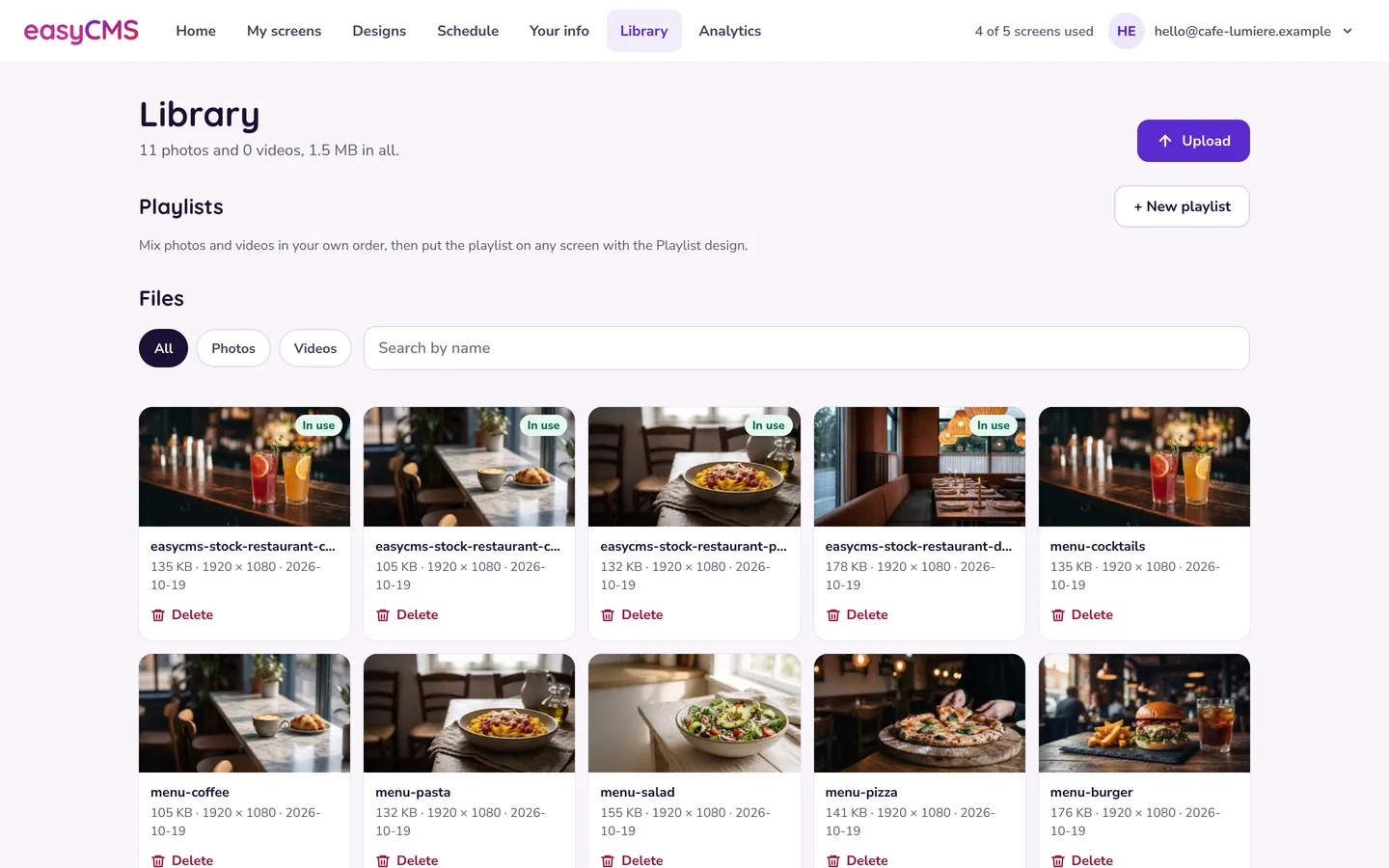 Die Mediathek in Studio zeigt, wie viele Fotos und Videos Sie haben und wie groß sie insgesamt sind.
Die Mediathek ist voll
Der Upload wird abgelehnt, und nichts geht verloren. Dann:
- Löschen Sie, was Sie nicht mehr nutzen. Tippen Sie in der Mediathek von Studio unter einer Datei auf Löschen. Eine Datei mit dem Hinweis In Verwendung bleibt, bis Sie sie aus dem Design oder der Playlist nehmen, die sie verwendet.
- Komprimieren Sie Ihre Videos (siehe unten). Ein typisches Video schrumpft um 80–90 % ohne sichtbaren Unterschied.
- Wechseln Sie zu einem größeren Paket, wenn Sie wirklich mehr Platz brauchen.
Löschen gibt das Kontingent sofort frei; die Player entfernen ihre Kopie bei ihrer nächsten Anmeldung.
Videos vor dem Hochladen komprimieren
Die nützlichste Gewohnheit im Digital Signage. Kodieren Sie mit HandBrake (kostenlos) neu:
| Einstellung | Wert |
|---|---|
| Format | MP4, H.264 |
| Auflösung | Höchstens 1920 × 1080 |
| Bitrate | 2–6 Mbps |
| Audio | AAC 128 kbps, oder kein Ton bei stummen Inhalten |
| Web-optimiert | An |
Ein 30-Sekunden-Clip sollte 10–20 MB groß sein, und er läuft auch flüssiger: siehe Videos spielen nicht ab oder ruckeln. Verkleinern Sie Fotos auf die Größe, in der sie angezeigt werden, als JPEG mit etwa 80 % Qualität.
Ein Upload schlägt fehl oder bleibt hängen
| Symptom | Wahrscheinliche Ursache und Lösung |
|---|---|
| Zeitüberschreitung | Sehr große Datei auf einer langsamen Leitung. Komprimieren Sie sie zuerst. |
| Sofort abgelehnt | Weder ein Foto (JPG, PNG, GIF, WebP) noch ein Video (MP4, WebM, MOV). Animierte GIFs lassen sich hochladen, bewegen sich aber nicht: Verwenden Sie ein kurzes MP4. |
| Ein Bild wird hochgeladen und verschwindet dann | Über der maximalen Pixelgröße. Verkleinern Sie es und versuchen Sie es erneut. |
| Ein Video tut dasselbe | Problem mit Container oder Codec. Kodieren Sie es neu als H.264-MP4 mit AAC-Audio. |
| Eine Fehlermeldung, die technisch aussieht | Bei Enterprise fehlt diesem Benutzer vielleicht das Recht zum Hochladen, oder er hat ein eigenes, niedrigeres Kontingent: siehe Benutzer und Berechtigungen. |
Im erweiterten Editor
Im klassischen easyCMS hilft Bibliothek > Medien beim großen Aufräumen:
- Sortieren Sie nach Größe, die größten zuerst: Die obersten fünf Dateien machen meist den Großteil des Kontingents aus.
- Der Nutzungsbericht einer Datei (Zeilenmenü) zeigt, was sie verwendet. Mit Zurückziehen laufen bestehende Layouts weiter, oder Sie löschen sie und passen die Layouts an.
- Wenn ein Player selbst keinen Platz mehr hat, kann das Löschformular das Entfernen direkt an die Bildschirme schicken.
Tipp Löschen Sie die Dateien einer Kampagne, wenn sie endet, bewahren Sie die Originale woanders auf, verwenden Sie ein Video wieder statt fast identischer Versionen, und sehen Sie die Mediathek einmal im Quartal durch.
Verwandte Artikel: Playlists und die Medienbibliothek, Videos werden nicht abgespielt oder ruckeln, Benutzer und Berechtigungen