
A hotel with ten meeting rooms on three floors runs two or three events per room on a busy day. That is thirty events, most of them with a client who expects to see their name at the door, and a programme that changes the evening before. The printed sheet in a plastic frame is wrong by ten o’clock. The screens on this page follow the bookings themselves, so the person who moves a meeting in Outlook has already updated every screen in the building.
This page covers what the screens show, how the bookings get to them, where to hang the screens, what it costs and what easyCMS will not do.
The advantages
- Door signs and lobby boards that follow your Outlook, Microsoft 365 or Google calendars, every few minutes
- Or paste the day’s functions from Excel, or type a booking on your phone
- Each event with the client’s logo, found on Wikipedia or the client’s own website in one click
- The name guests should read, not the calendar’s internal title, and private meetings shown only as “Booked”
- Arrows to each room from where every screen hangs, and combined rooms such as a ballroom that splits in two
- Three looks, text, logos and a large picture or video, each in landscape and portrait
- Seven screen languages: English, French, German, Spanish, Dutch, Italian and Polish
- Three rooms included in every account, unlimited rooms for 299€ once, no monthly fee
Two kinds of screen
The door sign
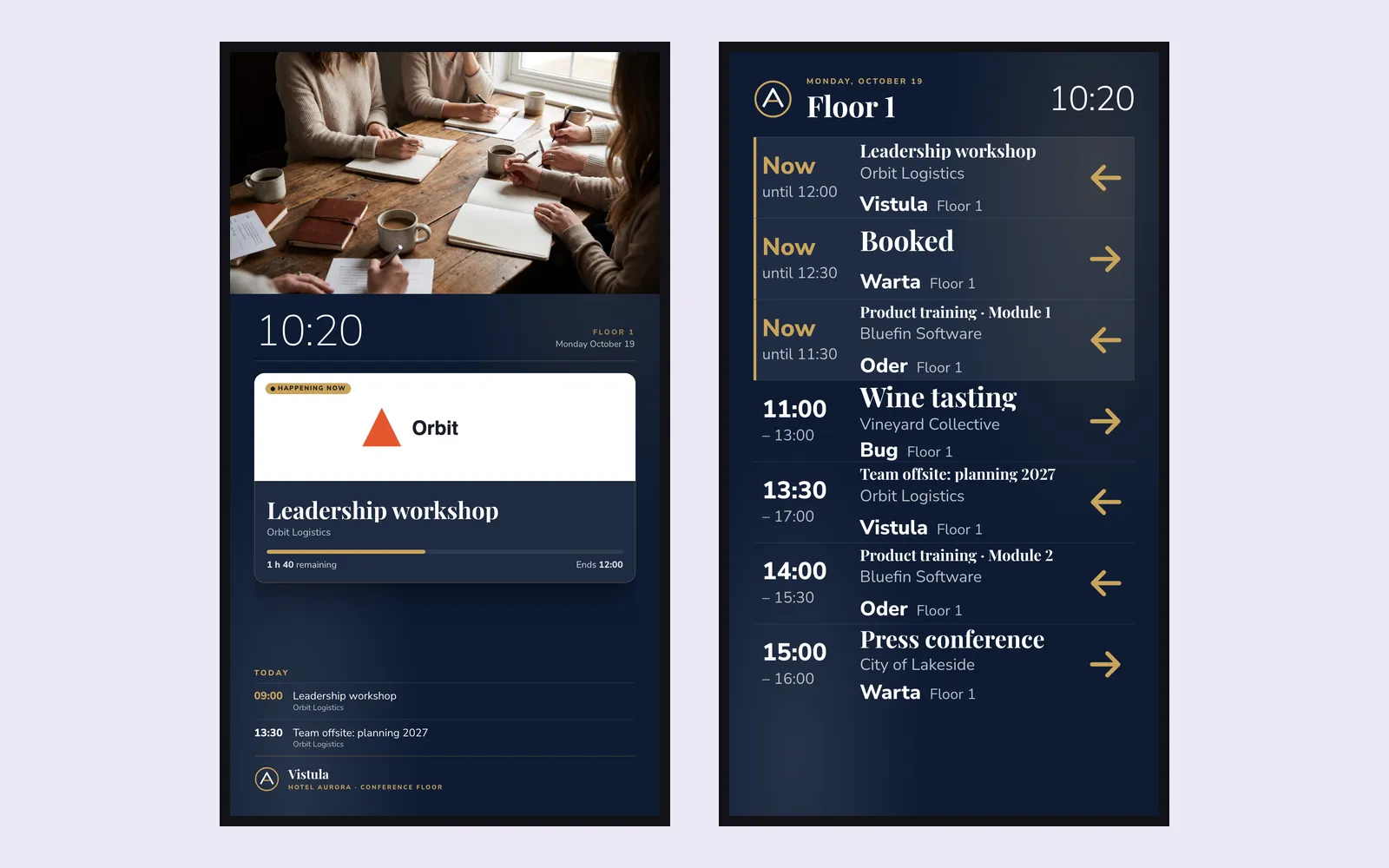
One screen beside one room. What is on now, with the time left, what is next and the rest of the day. Free? It says so, and until when.
The board
Every room in the building, or one floor: today’s events with time, client, room and an arrow pointing the way. It turns the pages by itself.
Both read the same bookings, so the door sign and the lobby board never disagree.
How it works
1. List your rooms once
In Studio, open Rooms & bookings and add your rooms: name, floor and order. A ballroom made of two halves is added once, with its parts.
2. Bring the bookings in
Paste each room’s calendar link from Outlook, Microsoft 365 or Google, paste rows from Excel, or type a booking on your phone.
3. Make each booking look right
Show the name guests should read, the client’s logo or a photo, or hide a booking. Studio can find the client’s logo on the web for you.
4. Put the design on the screens
Pick a template, choose every room, one floor or one room, add your logo and the arrows, and play it.
5. It keeps itself up to date
Bookings are read every few minutes. Each screen moves from now to next on time by itself, even if the network drops.
Calendar links, step by step:
- Outlook and Microsoft 365: Settings, Calendar, Shared calendars, Publish a calendar. Choose the room’s calendar and “Can view all details”, then copy the ICS link. For a room mailbox, your IT can publish it with full details.
- Google Calendar: the room’s calendar settings, Integrate calendar, the secret address in iCal format.
Good to know A private meeting in Outlook or Google, or a calendar published as “Can view when I’m busy”, shows as “Booked”, with the time but without its name. That is usually what an office wants on a corridor screen.
Where to put screens, and what size
| Location | Suggested size | Orientation | Template |
|---|---|---|---|
| Beside each meeting room door | 22”–32” | Landscape or portrait | Door sign, text or logo |
| Ballroom and large function rooms | 32”–43” | Portrait | Conference room door, with the client’s logo |
| Lift lobby on each floor | 43”–49” | Portrait | Board for that floor, with arrows |
| Hotel lobby or conference foyer | 55”–65” | Landscape | Conference board or events with logos |
| Office reception | 43”–55” | Landscape | Reception board, with your film |
| Registration desk at a congress | 43”–55” | Portrait | Today’s events list |
Door signs go at about 1.4 metres to the centre, lift lobby screens at about 1.6 metres. A door sign needs power at the door, so plan the socket, or Power-over-Ethernet, before the wall is finished. Any easyCMS player works: Windows, Android, LG webOS or Samsung Tizen. A commercial screen with the player built in needs no box behind it. See the player buying guide.
What it costs
The meeting room templates and Rooms & bookings come with every easyCMS account. Three rooms are included. Above three, the Conference rooms add-on is 299€ once and unlocks unlimited rooms on every floor. Each screen still needs its own display licence, as every screen does.
An office with three meeting rooms
Three door signs and one board at reception: four screens.
| Line | Cost |
|---|---|
| easyCMS account, up to 5 displays, 1 licence included | 49 EUR one-time |
| 3 × extra licence at 66 EUR, bought in the same order | 198 EUR one-time |
| Conference rooms add-on | not needed, three rooms are included |
| Software total, paid once | 247 EUR |
A hotel with ten meeting rooms on three floors
Ten door signs, a portrait board in each of the three lift lobbies and one conference board in the lobby: fourteen screens.
| Line | Cost |
|---|---|
| easyCMS PRO account, up to 25 displays, 1 licence included | 299 EUR one-time |
| 13 × extra licence at 66 EUR, bought in the same order | 858 EUR one-time |
| Conference rooms add-on, unlimited rooms | 299 EUR one-time |
| Software total, paid once | 1,456 EUR |
Licences bought in the same checkout as the account are 66 EUR each instead of 99 EUR. There is no monthly fee on any of these lines, and the screens and players are on top. Everything is on the pricing page.
What easyCMS will not do
Worth reading before you buy, because these are the questions venues ask once the screens are up.
- No booking from the screen. The screens show bookings, they do not take them. There is no “book now” button, no check-in and no release of a room nobody turned up to. People keep booking in Outlook, Google or your hotel system.
- No direct connection to Microsoft 365, Google or a hotel system. easyCMS reads a published calendar link, or what you paste from Excel. It does not sign in to your Microsoft or Google account, and it does not connect to Opera, Delphi or another sales and catering system.
- Not to the second. Calendars are read every few minutes, and Outlook itself can take a while to update a published calendar. A meeting moved a minute before it starts may reach the door a little late.
- No room sensors. It does not know whether people are actually in a room.
- Logos are your responsibility. Studio finds a logo for you, but whether you may show it is between you and your client.
- You are not an administrator of the CMS. We host it in the EU and look after the platform. Configuration changes come through us.
Questions venues ask
Do we need the add-on?
Only for more than three rooms. Every account includes three, so a small office never needs it. The add-on is 299€ once, for unlimited rooms, and it does not renew.
Does every door sign need a licence?
Yes, every screen needs a display licence, whatever it shows: 66€ with an account, 99€ added later, 49€ on Enterprise for Android, webOS or Tizen. The add-on counts rooms, not screens.
Our function diary is in Opera or Delphi. Will it work?
Yes, through Excel. Export the day’s functions, copy the rows and paste them into Studio. It takes a minute in the morning, and the client’s logo and the guest-facing name stay on each booking.
Can a screen show only one floor?
Yes. Each board is set to every room, one floor or one room. A portrait screen in each lift lobby set to its own floor is the pattern that works best in a hotel.
What does a screen show when nothing is on?
The door sign says the room is free and until when. The boards say there are no more events today, or show tomorrow’s first events once today’s are over.
Can the board play our hotel video?
Yes. The large picture look takes a photo, a video or a playlist where the picture goes, with the event on now, the next one and the rest of the day beside it.
What if the network goes down?
Each screen keeps the day’s bookings and its own clock, so it carries on moving from now to next. New bookings and changes appear once it is back online. More in digital signage without internet.
For the rest of a hotel’s screens, from the lobby welcome to the staff canteen, see digital signage for hotels. For offices, see internal communication.