Add a display 📺
A screen is connected in a few minutes. Follow the steps, tick each one off, and the last step connects it to your account.
Signed in as
Welcome back — picking up where you left off.
Which easyCMS do you sign in to?
What kind of screen are you connecting?
LG webOS? Ask us and we will set it up with you.
Connecting Android
-
Type this address on the screen
On the screen itself, open the web browser, select the address bar and type this address exactly. The player starts downloading straight away.
Address not working, or no browser on the box?
Use a USB stick instead: download the Android player on a computer, copy it onto the stick, plug it into the screen and open it from the file manager. Then carry on with the next step.
-
Tap Install, then Open
Open the downloaded file, from the download notice or the browser's Downloads list, and tap Install. The first time, Android asks whether the browser may install apps: allow it, go back, and the installation carries on. When it finishes, tap Open.
-
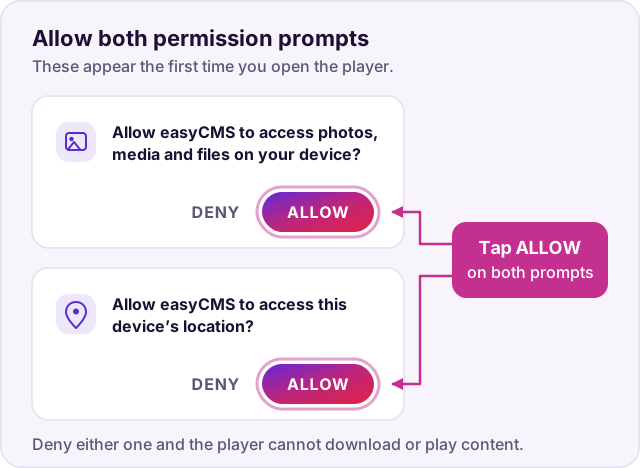
Allow the two permissions
Android asks twice: once for photos, media and files, once for location. Tap Allow on both — the player caches your content on the device and cannot play anything without them.
-
Enter the licence email — if it asks
Most players never ask for this, and if yours does not, skip straight on. When it does appear, enter the address below exactly as written; it activates the commercial Android player.
- Licence email
licence@myeasycms.com
Didn't see this screen? Nothing is wrong — carry on.
-
Choose "Configure Manually"
The player asks how to connect. It offers Activate Player with a six-character code, and Configure Manually.
Choose Configure Manually. The activation code is a different enrolment service and does not work with easyCMS — a code like
4EFF15on screen means you are on the wrong option.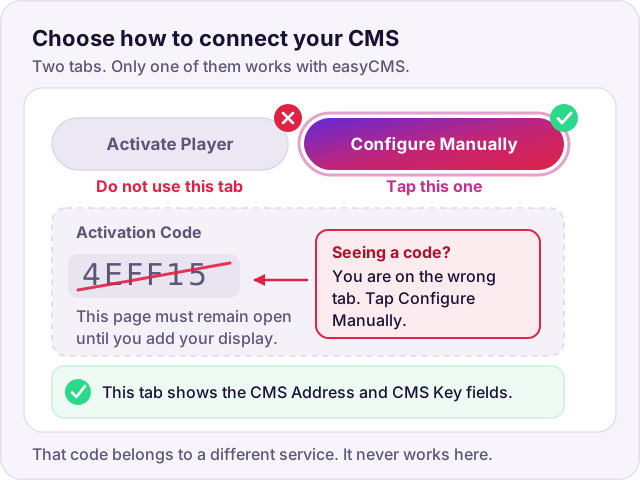
-
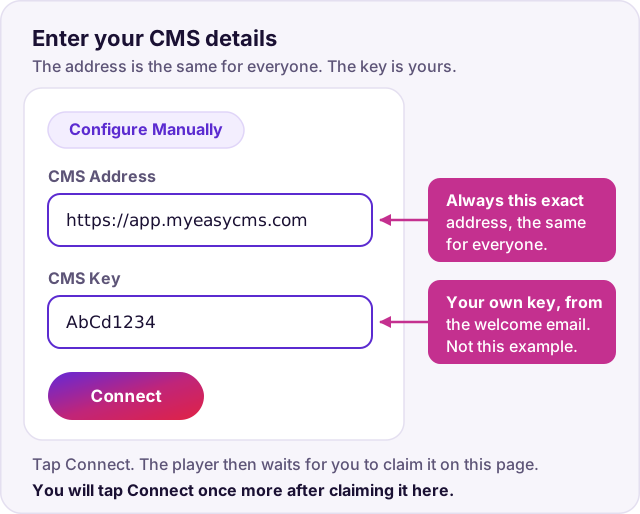
Enter your CMS address and key
Type both into the player exactly as shown below, including
https://.- CMS address
https://app.myeasycms.com- CMS key
-
—Sign in below to see your key, or take it from your welcome email.
-
Press Connect on the player
Tap Connect on the screen itself. It will report that it is waiting for authorisation — that is exactly right, and the next step is where you give it.
Nothing reaches us until you press Connect. If you skip it, your screen will not appear in the next step no matter how long you wait.
-
Leave the screen switched on
The player checks in with us every few minutes, and it has to be on for us to find it. Leave it exactly where it is and come back here.
-
Connect it to your account
-
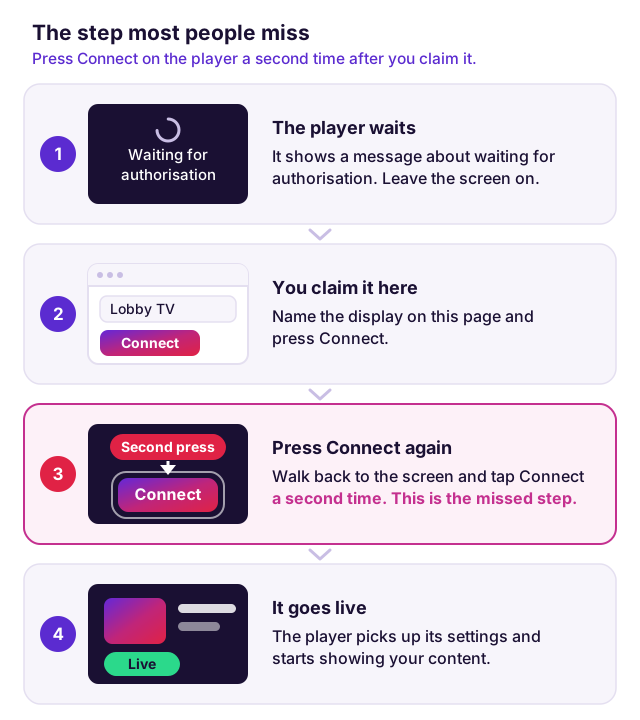
Press Connect once more, on the player
Go back to the screen and tap Connect again. Authorising alone does not move it off the waiting screen — this second press is what makes it collect its configuration and start playing.
This is the step people miss. Without it the screen sits on "waiting for authorisation" even though everything on our side is done.
-
Watch it come to life
Within a minute or two the screen shows the default easyCMS layout. That is the sign everything worked: registered, licensed, claimed and taking content.
Connecting Windows
-
Download and install the player
Run the easyCMS Windows installer on the PC behind the screen. No licence email is needed on Windows.
-
Open Player Options
Installation opens Player Options. If it is already closed, open it again from the Start menu.
-
Enter your CMS address and key
Fill in the CMS Address and Key exactly as shown below, including
https://, then click Save.- CMS address
https://app.myeasycms.com- CMS key
-
—Sign in below to see your key, or take it from your welcome email.
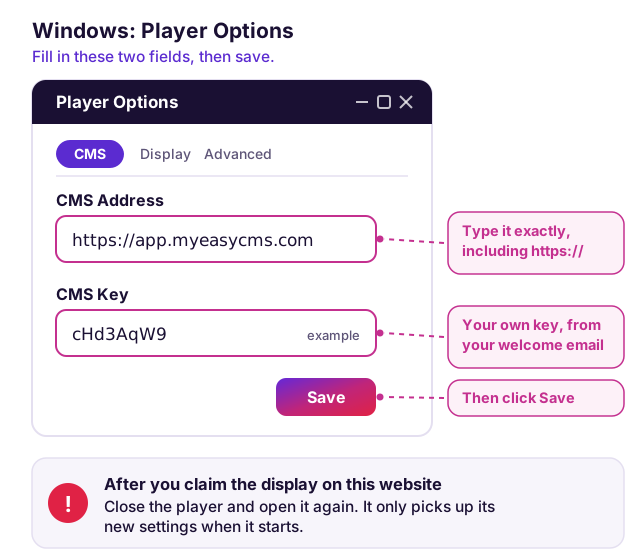
-
Start the player
Launch the easyCMS player itself. It registers with us and shows a message about waiting for authorisation — that is correct, and the next step fixes it.
-
Leave the player running
It has to stay running for us to find it. Leave it on the screen and come back here.
-
Connect it to your account
-
Restart the player
Back on the PC, close the easyCMS player and open it again, so it collects its configuration.
This is the step people miss. Until the player restarts it sits on "waiting for authorisation" even though everything on our side is done.
-
Watch it come to life
Within a minute or two the screen shows the default easyCMS layout. That is the sign everything worked: registered, claimed and taking content.
Connecting Samsung Tizen
-
Check the screen and its clock
This works on Samsung commercial signage displays (Tizen 4.0 / SSSP 6 or newer), not on Samsung home TVs. On the remote press Menu, go to System → Time and set the date, time and timezone. A wrong clock makes the install fail without saying why.
-
Switch the screen to Custom App
Press Menu, go to System → Play via and choose Custom App (called URL Launcher on older screens). New screens ask this during their first-start setup.
Seeing MagicInfo Player instead? Play via is still on MagicInfo. Change it, or the player never starts.
-
Install the player
Press Home, open Custom App settings (or URL Launcher Settings), choose Install Web App and type
https://app.myeasycms.com. If it asks for a PIN, it is0000unless someone changed it. The player installs and opens by itself.Install refused? Update the screen's firmware and check the clock, then try again. Or use the USB install pack from Downloads: unzip it, copy the
SSSPfolder to a USB stick as it is (nothing to edit), then choose Install from USB Device. -
Choose "Configure Manually"
The player asks how to connect. It offers Use Activation Code and Configure Manually.
Choose Configure Manually. The activation code is a different enrolment service and does not work with easyCMS — a six-character code on screen means you are on the wrong option.
-
Enter your CMS address and key
Fill in CMS URL and CMS Key exactly as shown below, including
https://. A USB keyboard plugged into the screen is much quicker than the remote.- CMS address
https://app.myeasycms.com- CMS key
-
—Sign in below to see your key, or take it from your welcome email.
-
Select Connect on the player
Select Connect on the screen. It then says it is awaiting authorisation — that is exactly right, and the next step is where you give it.
Nothing reaches us until you select Connect. If you skip it, your screen will not appear in the next step no matter how long you wait.
-
Leave the screen switched on
The player checks in with us every few minutes, and it has to be on for us to find it. Leave it exactly where it is and come back here.
-
Connect it to your account
-
Give it a few minutes
The screen picks up its new settings at its next check-in, usually within a few minutes, and the waiting message goes away on its own.
Still waiting after five minutes? Switch the screen off and on again with the remote, so it checks in straight away.
-
Watch it come to life
Within a minute or two the screen shows the default easyCMS layout. That is the sign everything worked: registered, licensed, claimed and taking content.
Sign in with the same easyCMS login you use for the CMS.
Sign in 🔐Signed in as
Looking for your screen… it can take a few minutes for the player to check in. Leave it switched on and this page open.
More than one new screen is on this network. On the player, open the advanced details to see its MAC address, and pick the row ending in the same four characters.
Nothing showing? The screen has to be on the same internet connection as this computer or phone. If it isn't, contact support and we'll connect it for you.