easyCMS has no recurring fee on the one-time plans. Once you purchase the player or licence there are no other software costs. This is a perfect solution for schools, colleges, and universities that want to save on deployment. Our all in one package contains an LCD display, an Android player and a wall mount. These are specially selected to offer lasting performance at the best price.
A monthly fee per screen has to be defended in every budget round, and it grows with every new screen. With easyCMS you buy once and it stays bought. This page covers what to put on the screens, where to put them, and what it costs.
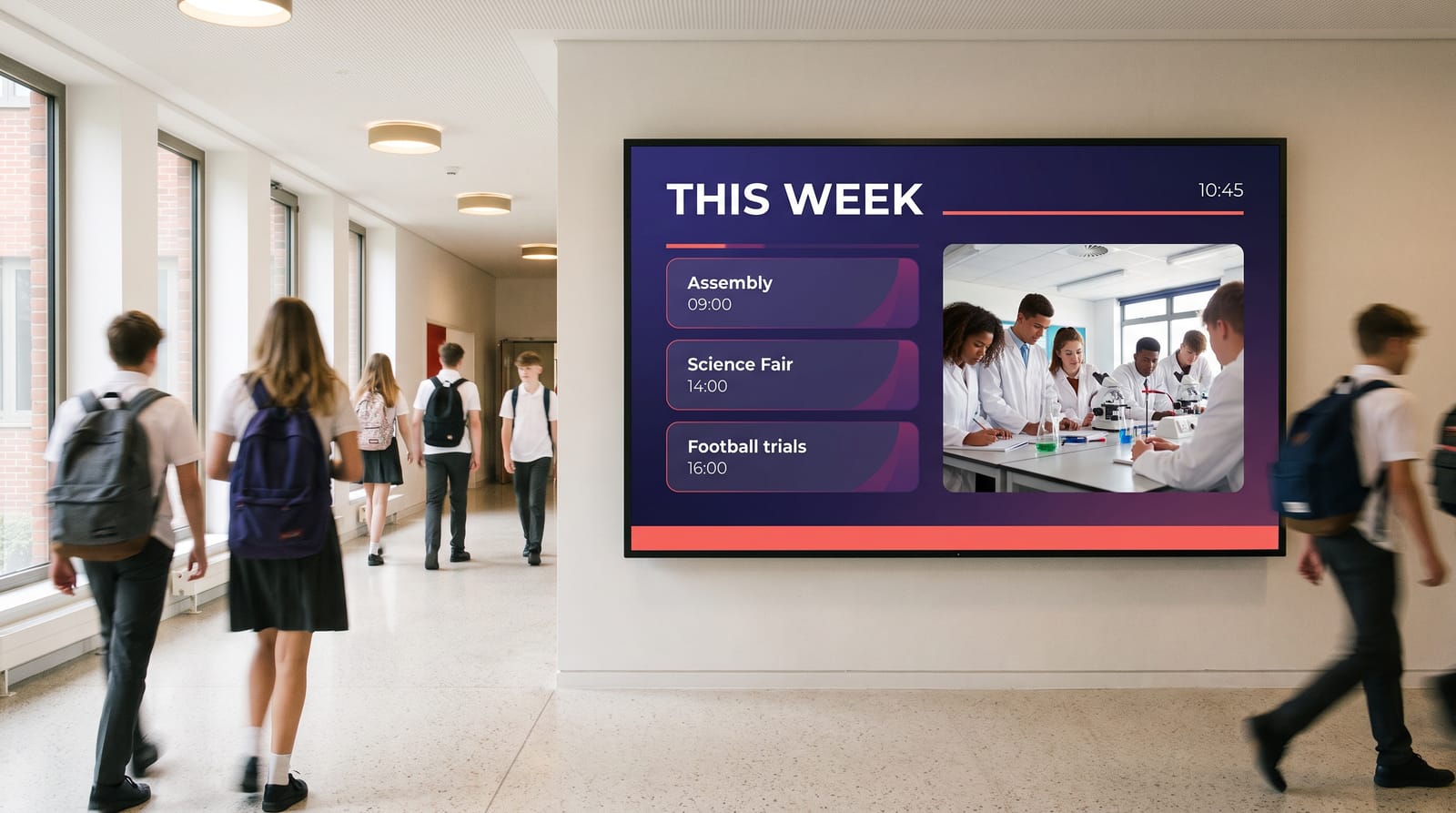
The advantages
- Affordable digital signage solution
- Inform students and teachers easily
- Communicate in a dynamic and modern way
- Easily broadcast information and alerts
- Manage one or more screens from a central point
What actually goes on the screens
Screens can be updated in seconds, from a phone, even in an emergency. Here is what earns its place.
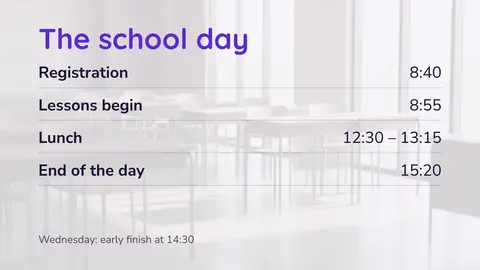
Timetables, room changes and cover
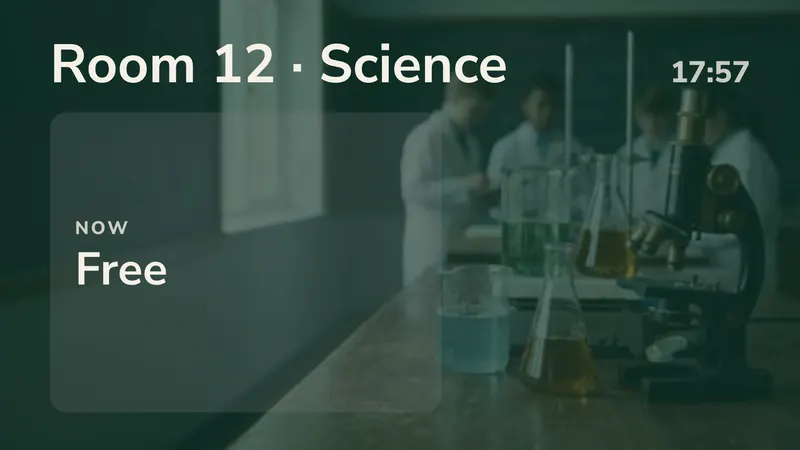
Today’s room changes and staff absences on every corridor screen. Change it at 08:20 and it is up before registration.
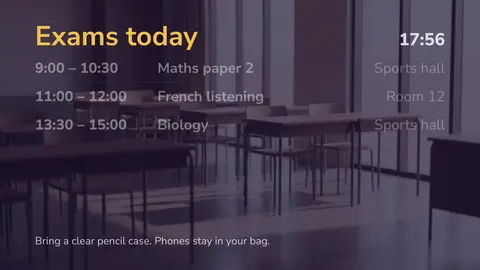
Exam information
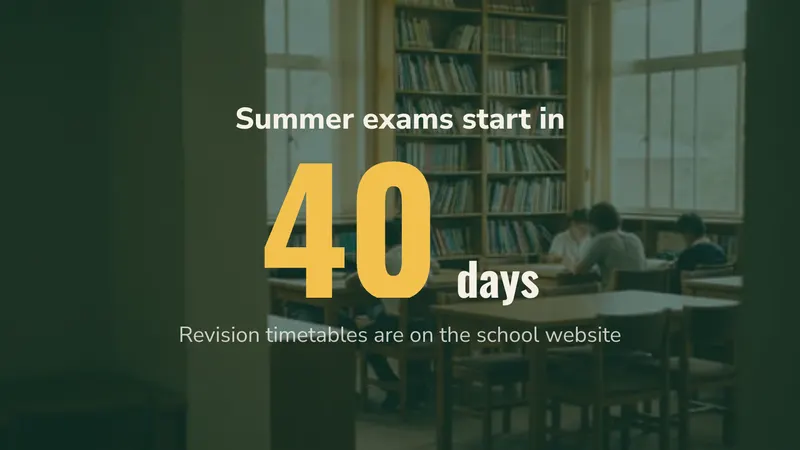
Exam timetables, rooms, seat numbers and what candidates may bring in. It changes too often for print to keep up.
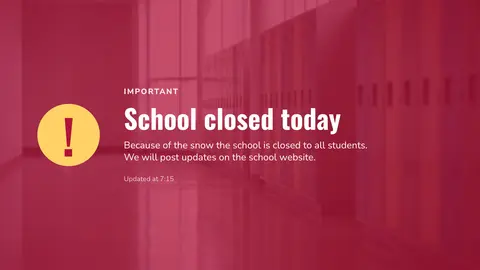
Emergency, weather and closure notices
A snow closure, an early finish, a fire drill. Studio’s Urgent notice puts one message on every screen at once, and Stop puts everything back.

Celebrating student work
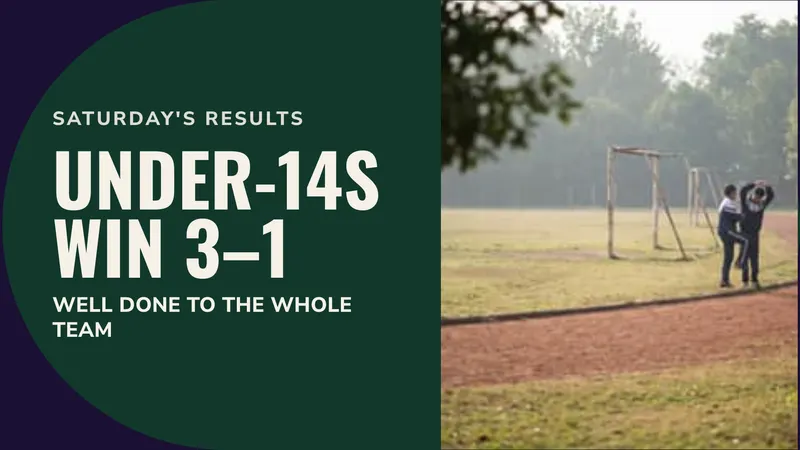
Artwork, photography, sports results and the school production. It is what students stop to look at, and why the timetable next to it gets read.
Canteen menus and queues
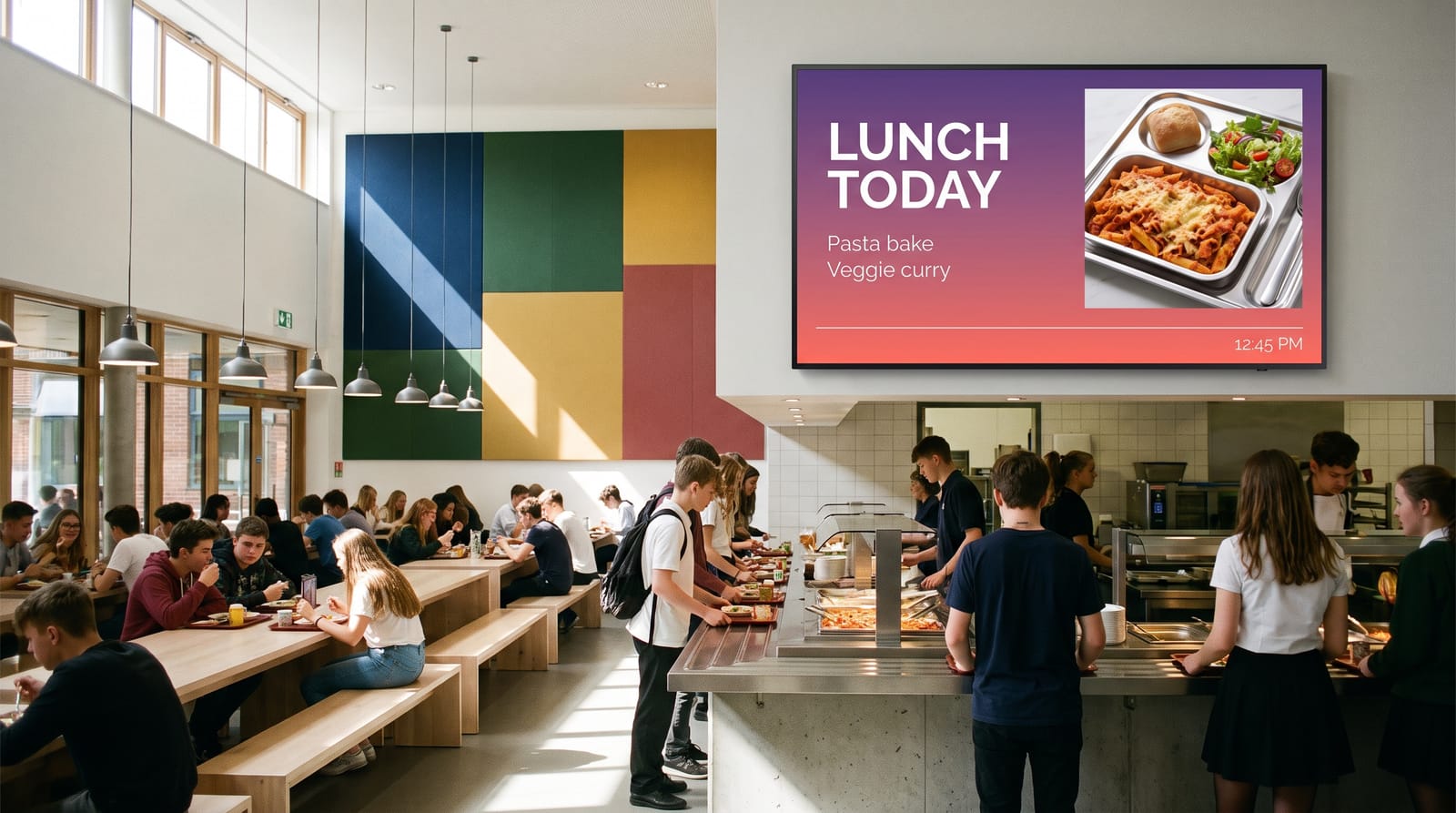
Today’s menu with prices and allergens, and what has sold out. The kitchen can change a dish at 11:30 without reprinting anything.
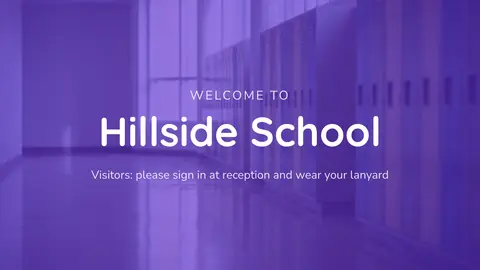
Visitor welcome and safeguarding
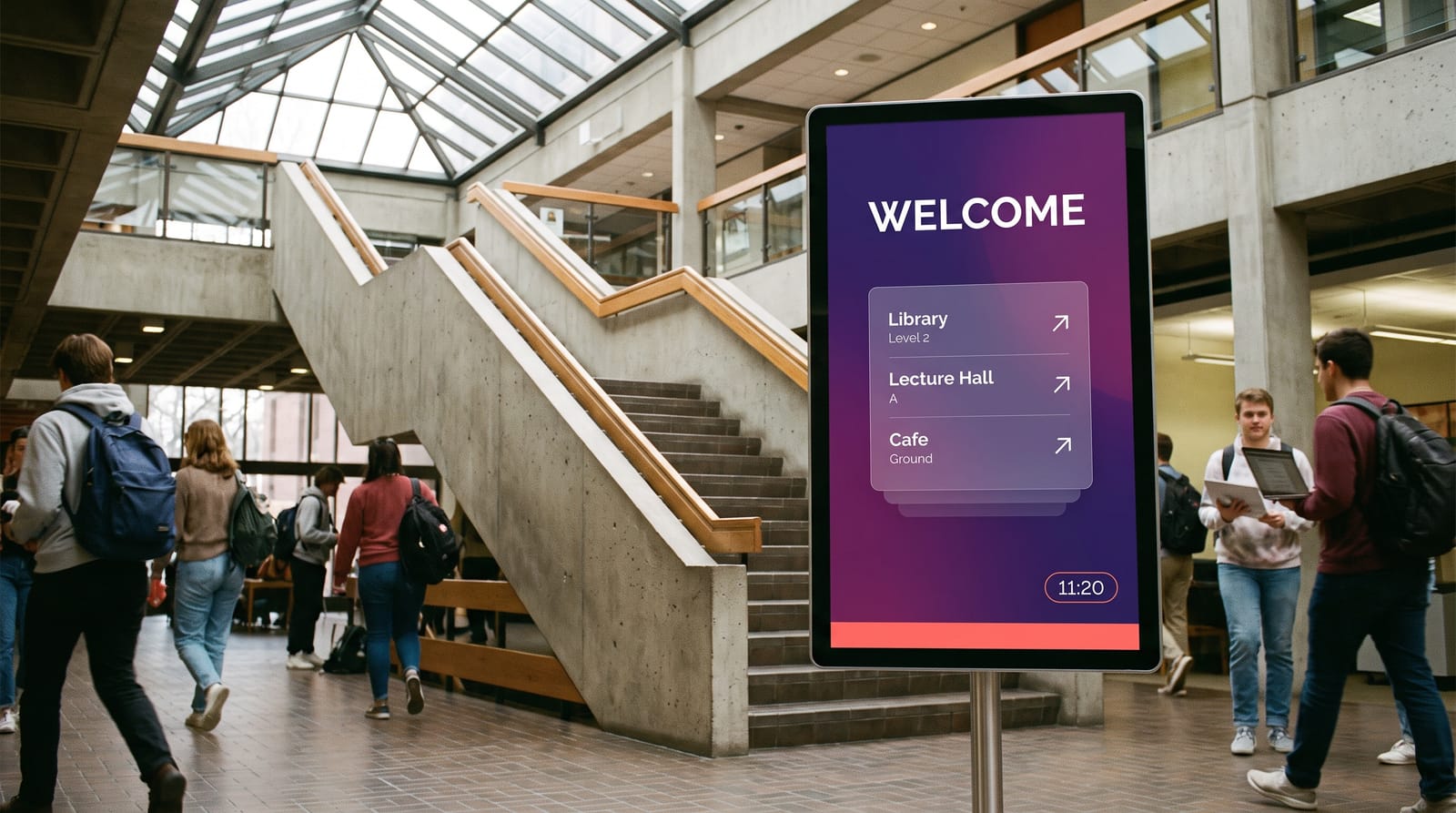
Welcome visitors by name, with sign-in steps and safeguarding contacts. Almost every visitor to a school is there for the first time.
Staff room boards
Briefings, duty rotas, training days and report deadlines, on screens only staff see.
Wayfinding and events
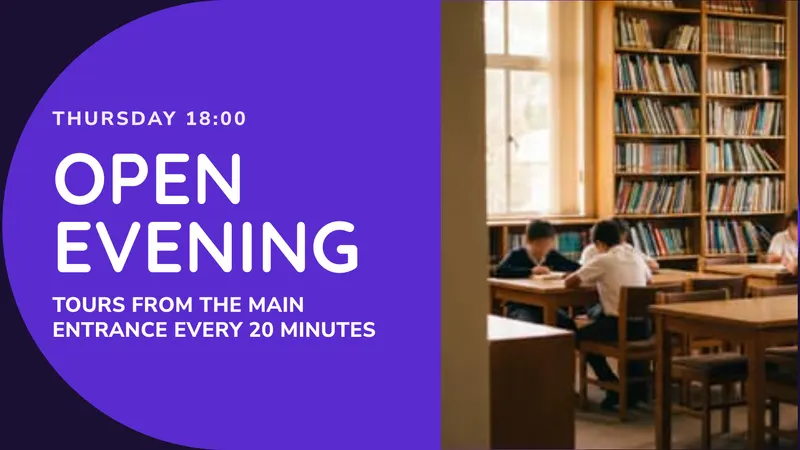
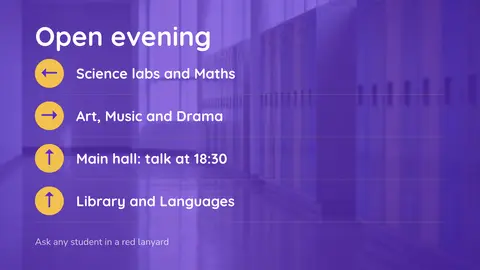
Open evening routes, parents’ evening rooms, fixtures and bus times. One edit instead of forty printed signs.
Where to put screens, and what size
| Location | Suggested size | Orientation | Job it does |
|---|---|---|---|
| Main entrance / reception | 55”–65” | Portrait | Welcome, visitor info, school brand |
| Main corridor junctions | 49”–55” | Portrait | Timetable changes, notices, news |
| Canteen | 55”–65” | Landscape | Menus, prices, allergens |
| Sports hall / gym | 65”–75” high brightness | Landscape | Fixtures, results, exam layout |
| Staff room | 43”–49” | Landscape | Briefings, rotas, CPD |
| Library / sixth-form area | 43”–49” | Portrait | Deadlines, university dates, study info |
| Department corridors | 43”–49” | Portrait | Subject news, student work |
Mounting height matters more in schools than anywhere else. Put the centre of the screen at about 1.6 m in a staff area, but higher in a corridor where a hundred students walk past at once and the bottom of the screen would otherwise be blocked by heads. A screen students can reach is a screen that gets touched, so in high-traffic corridors mount above reach and tilt down slightly.
Corridors are usually portrait: they match the wall shape and read as a single scrolling column. Canteens and halls are usually landscape, where you have distance and want video.
What it costs
Take a secondary school with twelve screens: the entrance, the corridors, the canteen, the sports hall, the staff room and the library. Above five screens you need the PRO account.
| Line | Cost |
|---|---|
| easyCMS PRO account, up to 25 displays, 5GB storage, includes 1 licence | €299 one-time |
| 11 × extra licence at €66, bought in the same order | €726 one-time |
| Software total, paid once | €1,025 |
Most signage platforms charge every month for every screen instead. At €20 per screen per month, a common price:
| easyCMS | Subscription at €20/screen/month | |
|---|---|---|
| Year 1 | €1,025 | €2,880 |
| Year 2 | €0 | €2,880 |
| Year 3 | €0 | €2,880 |
| Year 4 | €0 | €2,880 |
| Year 5 | €0 | €2,880 |
| Five-year total | €1,025 | €14,400 |
You pay once, and there is nothing to renew in next year’s budget.
- A small primary school with four screens needs only the easyCMS account: €49 plus three licences, €247 in total.
- Licences added later are €99 each instead of €66, so buy the screens you already know about in the first order.
- A trust with more than 25 screens, or one that wants its own branding, takes the Enterprise account at €1,290 a year.
- Hardware: our Android player is €499 and includes the licence for its screen. We can also quote for the screens themselves.
Every price is on the pricing page.
Running it day to day
Who updates it
The office for daily notices, IT for the technical side, one keen teacher for student work. A few minutes a day; design once a term.
Involve students
A media club can run the student loop on a locked layout: they swap pictures and text, but cannot touch timetables or emergency notices.
How often
Cover changes daily, menus daily or weekly, student work every week or two, exam content in bursts, emergencies on demand.
Scheduling for a school day
Follow the bell: cover before 09:00, menus at lunch, clubs from 15:00, screens off in the holidays. See scheduling content.
Who needs access
The office and leadership publish everywhere, departments only to their own corridor, students only to the student-work screens.
Several sites
Run every school from one place: trust-wide news reaches every screen, and each school keeps its own notices and menus.
Getting going
Connect your first display, then pick a template from the school collection.
Your own design
Content is king! Buying a screen is only the beginning; what you put on it is what gets read. Studio’s school templates cover the everyday jobs. When you want something entirely your own, the advanced editor builds any layout, or we can design it for you. The features page covers what is available.
Hardware notes for school buildings
School corridors are harder on equipment than offices are. A few things worth deciding before you order.
Mount out of reach
In busy corridors, put the bottom of the screen above about 2 m. It stays out of reach, visible over a crowd and safe from most vandalism.
Consider an enclosure
In sports and dining halls, a protective enclosure costs less than a new panel. Worth it for any screen below 2.5 m in a lively space.
Secure the mount, not just the screen
Use a locking mount with security screws, and fix the player behind the screen so nothing loose can walk away.
Commercial panels, not TVs
School screens run all day. Commercial panels are made for that, are brighter and can hang in portrait; a TV’s warranty usually excludes it.
Power and network
Put a socket and a network cable behind the screen if you can. Wi-Fi is fine too: screens keep playing even when the internet drops.
Network policy
Ask your IT team early which outbound connections the player needs. Five minutes before installation saves a frustrating afternoon after.
Players
easyCMS runs on Windows, Android, LG webOS and Samsung Tizen. Existing school PCs often work. The player buying guide helps you choose.
A complete solution
Our all in one solution reflects our philosophy of simplifying Digital Signage. When you buy our solution with LCD screen, everything is included. Your player is pre-configured with your content and adapted layout. The screen is delivered with its standard wall mounting. Installation is very simple, It’s Just Plug & Play!
Questions schools ask
Can we push an emergency notice to every screen at once?
Yes. In easyCMS Studio, Urgent notice puts one message on every screen at once, with ready-made wording for closures, evacuations and fire alarm tests, and Stop puts every screen back to what it was showing. Because content is cached locally, screens already showing the notice keep showing it even if the network then fails.
Will it work on our locked-down school network?
In most cases yes, with the right outbound access agreed with your IT team. The player caches content, so it does not need a permanent connection to keep displaying, it needs a connection to receive updates.
Can students help run it?
Yes, and it works well. Scope a student group to a single display group and a single layout so they can publish their own content without being able to touch timetables, staff notices or the emergency template.
Do we pay per screen every year?
No. Licences are one-time and lifetime. The PRO account is a one-time €299. The only annual option is the Enterprise account, for trusts above 25 displays.
Can we use screens we already own?
Usually. Any screen with an HDMI input will work with a player. If it is a domestic TV it will do the job, but expect a shorter life and a dimmer picture than a commercial panel. See LCD displays for digital signage.
Get a quote for your school
Send us a rough list, how many screens, roughly where, and whether you need hardware, and we will come back with a firm figure. We are a European company (DynamicDigital sp. z o.o., Warsaw, Poland, VAT PL5213678094) and provide a VAT invoice for your finance office.
Email info@myeasycms.com, call +48 509 937 137, or use the support request form. You can also read what digital signage is, see what others have built, read about the free digital signage software easyCMS runs on, or look at the equivalent guides for offices and internal communication and restaurants and bars.