
An LED wall is seen from far away, for a few seconds, by people walking or driving past. So the rules are simple: the exact pixel size of the wall, dark backgrounds, strong contrast, few words, big letters, and very little movement. Here are our 13 tips, from before you start to checking the result on site.
Good to know The LED wall calculator turns a cabinet and a pixel pitch into the wall’s resolution, size, true aspect ratio, weight, power and viewing distances.
In easyCMS Studio, choose Custom size… above the preview and type the wall’s width and height in pixels: every template then fits the wall, and long text shrinks by itself. No design skills needed; see how to create screen content for free.
Before you design
1. Test before installation
Every LED screen is different. Check how images, colours and text render with our test template and images before you make the real content.
2. Know the technical data
Resolution, pixel pitch, minimum viewing distance and where it stands. For example: 10 mm pitch, 384 x 192 pixels, read from 20 m, by the road.
3. Use the exact pixel size
Make content at the wall’s exact resolution and avoid automatic scaling. A bigger image does not look better, quite the opposite. This video explains pixel pitch.
Colour and text
4. Avoid bright backgrounds
Full-screen white or red shortens the LEDs’ life, uses more power and dazzles people, even drivers. Use darker, softer background colours.
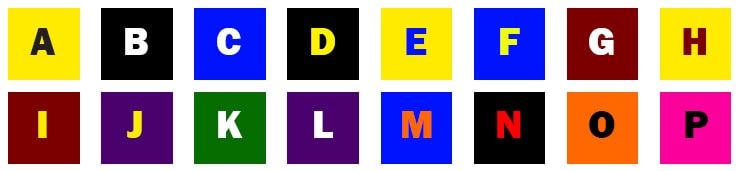
5. Use contrasting colours
Some pairs read far better: black on yellow, yellow on black, white on blue, yellow on blue, white on green. Check how your brand colours fit.
6. Use few words
People pass quickly, on foot or by car. Keep the message short and clear: 5 to 10 words per sentence at most.
7. Make text big and crisp
Use a plain sans-serif font such as Arial, Helvetica or Verdana. No drop shadow, bevel, glow or other text effects.
8. No text on images
Text over a busy photo or video is unreadable. Keep them apart, with a separate slide or zone for the text, or put a dark band behind it.


Motion, timing and checking
9. Keep it simple
Be original, but remove the clutter. Your audience has a very short time to see and remember the message. Less is more.
10. Reduce motion
Animation looks great in the preview but distracts from the message, and people may look while only the animation is playing. Avoid animated text especially.
11. Get the timing right
A TV advert runs 20 to 60 seconds; on signage it is about 10, often 6 or less. Aim for slides of about 3 seconds on average.
12. Smooth transitions
Wild effects distract. A simple fade in and fade out is usually best: subtle, but noticeable.
13. Go and see
Check the result on location: it is the only way to judge quality and impact. If you run several screens, have one person check the content.

For sizes, text height and file formats, see digital signage screen sizes, resolutions and file formats. For the hardware itself, read LED displays for digital signage.