
Getting the player app onto an Android box used to mean a computer, a USB stick and a file manager driven with a TV remote. Now it is one address. On the Android box itself, open the web browser and type:
myeasycms.com/apk
The easyCMS player downloads straight away. Tap Install, then Open, and the screen is ready to connect. No computer, no USB stick, nothing to copy.
What you need
- An Android box or Android signage screen with a web browser. Android 9 or newer, a quad-core processor and 2GB of memory handle Full HD. See the player buying guide.
- A way to type. The remote’s on-screen keyboard is enough; a small wireless keyboard is quicker.
- An internet connection on the box. A network cable is more reliable than Wi-Fi for a screen that stays on all day.
- An easyCMS account, a one-time 49€ with your first display licence included.
Install the player in three steps
-
Type the address on the screen. Open the browser on the box, type myeasycms.com/apk in the address bar and confirm. The download starts on its own, always with the current player.
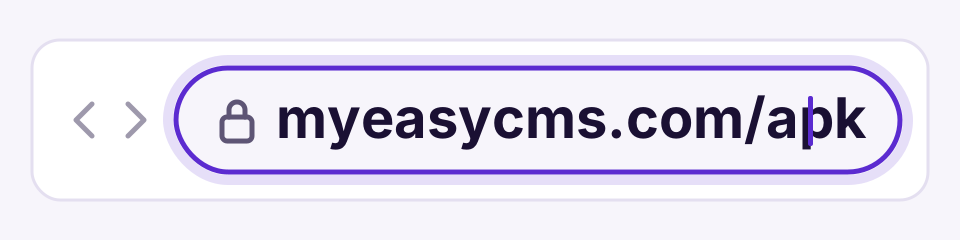
Address not working? Use a USB stick instead, as described below, then carry on with step 2.
-
Tap Install. Open the downloaded file from the browser’s download notice or its Downloads list. The first time, Android asks whether the browser may install apps: allow it, go back, and the installation carries on. You can switch that permission off again afterwards.
-
Tap Open. The player asks for two permissions, files and location. Allow both: the player keeps your content on the box, which is how it carries on playing when the internet drops.
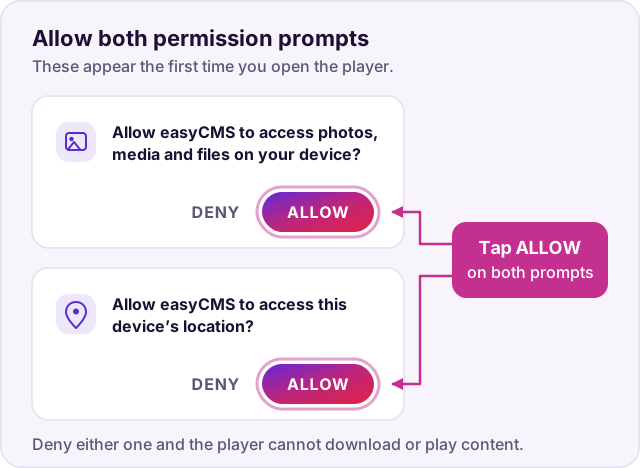
That is the whole installation: a couple of minutes, most of it the download.
Why there is still an Install button
Android does not let a website install an app by itself, on purpose. Anything from outside the app store has to be approved by someone holding the remote, the same protection that stops a web page installing apps on your phone. So “one step” means one address and a few taps, with nothing to prepare on a computer.
Samsung signage screens go further: you type our address into the screen’s settings and the player installs and updates itself. See the Samsung Tizen setup guide, or Tizen vs webOS vs Android player to compare the routes.
Connect it to your account
Once the player is open, the rest takes about five minutes. Add a display walks you through it on your phone, one step at a time:
-
On the player, choose Configure Manually (not the activation code).
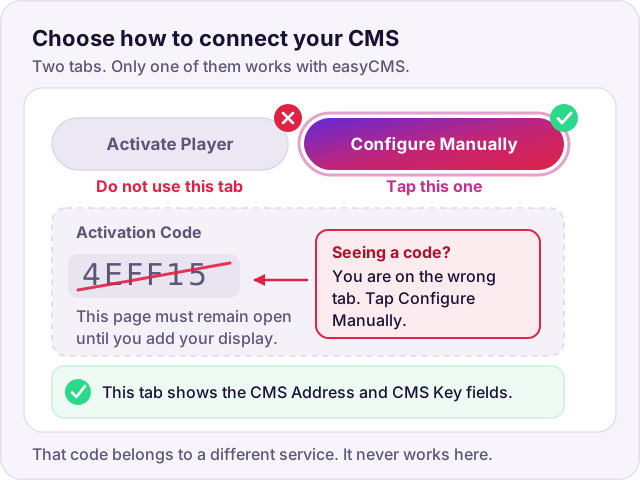
-
Enter your CMS address and key from your welcome email.
-
Press Connect. The player says it is waiting for authorisation, which is exactly right.
-
On your phone, connected to the same internet as the screen, open Add a display, pick your screen and give it a name.
-
Press Connect on the player once more. Within a minute or two it shows the easyCMS default screen.
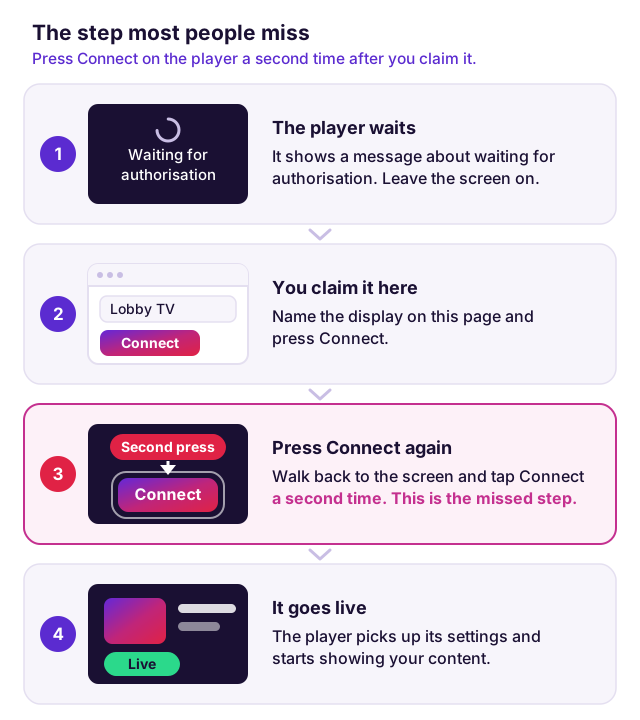
The full walkthrough, with the settings worth changing for a screen that runs all day, is in the Android player setup guide.
Address not working, or no browser on the box?
Some Android TV boxes have no usable browser, and a few block downloads. Two ways round it:
- Install a browser from the box’s app store, if it has one, then type the same address.
- Use a USB stick. Download the player from our downloads page on a computer, copy it onto the stick and open it from the box’s file manager. The setup guide covers this too.
Or skip installing altogether
Our Android digital signage player arrives already set up, with the licence for its screen. Plug in power and HDMI and it plays.
| Route | What you do | Cost |
|---|---|---|
| Your own Android box, with a browser | Type myeasycms.com/apk, tap Install | One-time 49€ account, licence included |
| Your own Android box, no browser | Install a browser, or use a USB stick | One-time 49€ account, licence included |
| easyCMS Android player | Plug in power and HDMI | 499€ player with its licence |
There is no monthly fee on any of them. More screens are 99€ each, once.
Then run it from your phone
However the player got there, you run the screen from easyCMS Studio on your phone. Pick a template for offers, menus, opening hours or notices, change the words, and tap Play on…. Play it always, between two dates or every weekday morning, and change it from wherever you are.