Android Player Setup
Install and configure the easyCMS Android player for digital signage, device requirements, APK install, CMS connection and reliable kiosk operation.
This guide takes an Android box or Android signage screen from the carton to playing your content. You need the device on your network, your CMS address and key from the welcome email, and a phone or computer on the same internet connection.
Add a screen in easyCMS Studio shows the same steps one at a time, with your CMS address and key once you sign in, then finds the screen and connects it.
Prepare the device
Pick dedicated player hardware rather than a bargain TV stick: signage runs 24/7, and cheap boxes overheat and stutter. Android 9 or newer, a quad-core CPU and 2GB+ RAM handle Full HD; 4K needs stronger hardware. We can also supply players set up for you.
- Connect the device to your network. Ethernet is more reliable than Wi-Fi.
- Check the date, time and timezone: scheduling depends on the player’s clock.
- Be ready to allow apps from outside the store (“unknown sources” or “install unknown apps”). Android asks during the install.
Install the player
-
On the device, open the web browser (Chrome, or whichever browser the box came with) and type
myeasycms.com/apkinto the address bar. It always points to the current Android player, so the download starts straight away.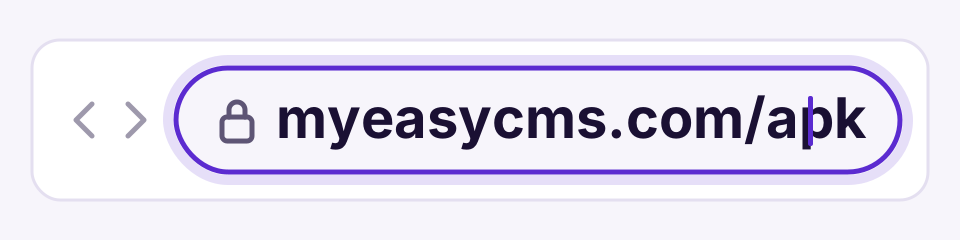
-
Open the downloaded file, from the browser’s download notification or its Downloads list, and tap Install. The first time, Android asks you to allow installs from the browser: allow it, go back, and the installation continues. You can switch that permission off afterwards.
-
When it finishes, tap Open.
-
The player asks for two Android permissions in turn. Tap Allow on both:
- access photos, media and files: the player caches your content on the device, and cannot play anything without it.
- access this device’s location: used for location-based scheduling and reporting.
-
The player opens its connection screen.
Address not working, or no browser on the box? Download the APK on a computer, copy it onto a USB stick, plug it into the box and open the file from its file manager. Then carry on from step 2.
Connect it to easyCMS
Some builds ask for a licence email first; most go straight to the connection screen, and that is fine. When asked, enter licence@myeasycms.com.
- The player offers Activate Player and Configure Manually. Choose Configure Manually.
- Enter your CMS address, normally https://app.myeasycms.com, in full including
https://. - Enter your CMS key and save.
- The player says it is waiting for authorisation. That is expected: leave it switched on.
- On a phone or computer on the same internet connection, open Add a screen in Studio or Add a display and connect the screen. Connecting your first display walks through it.
- Press Connect on the player once more. This is the step people miss: the player only collects its configuration on its next connection attempt.
Watch out The activation code (six characters, like
4EFF15) belongs to a different enrolment service and does not work with easyCMS. If the screen shows a code, go back and pick Configure Manually.
Within a minute or two the screen shows the default easyCMS layout: everything worked. Lost the welcome email? There is no screen in easyCMS to look the key up, so ask us.
Two licences, both paid once
Mixing these up causes most Android support tickets.
- Display licence: used when you connect the screen. One comes with your account and covers an Android screen; extra lifetime licences are 99€.
- Commercial player licence: for the Android player software, applied automatically when the screen connects. If the app asks for a licence email, enter licence@myeasycms.com. It re-verifies about every 30 days; if the check fails, the screen keeps playing what it has and quietly stops taking anything new. See player licence problems.
Keep it running
- Start on boot: turn on the player’s autostart option so it relaunches after a power cut. For unattended screens, set it as the device’s launcher (home app).
- Screen always on: turn off the device’s sleep and screensaver.
- Portrait screens: set the rotation in the player’s settings and design portrait layouts to match.
- Operating hours and check-in interval live on the settings profile your account shares, so we change them centrally. Tell us what you need.
Check it is playing
- At the screen: press i on an attached keyboard to open the Status window. On older players, or with no keyboard, touch the screen or move a mouse to bring up the action bar and choose Status. See reading the player status window.
- From anywhere: Studio’s My screens shows whether it is online; Details, then Take a new picture, shows what it plays. See display monitoring.
Stuck on the splash screen, or never appears in easyCMS? Work through the offline display checklist.
Related articles: Install Android digital signage in one step, Connecting Your First Display, Display Monitoring, Display Shows as Offline