
Warsaw, 11 October 2026. Today we are launching easyCMS Studio, a new way to run digital signage that anyone can use from a phone. Pick a ready-made design, change the words, and send it to your screens. No training, no design skills, no computer needed.
“For sixteen years we have watched the same thing happen. The screen goes up, and the person who has to keep it current is a café owner, a school secretary or a duty manager, not an IT person. Studio is built for them. If you can send a photo from your phone, you can run your screens.”
Yves Benini, founder of easyCMS
Sign in with your usual easyCMS account, on your phone or your computer. Nothing to install.
Why we built it
Digital signage software, ours included, was made for specialists: layouts, regions, playlists, schedules. That is fine for an agency. It is not fine for the person who just wants the lunch offer on the screen before 11:30.
So we rebuilt the everyday part from scratch, around the phone in your pocket. Here is what changes:
| What you want to do | Before | With Studio |
|---|---|---|
| Put up a lunch offer | Open a layout editor on a computer, place the text, schedule it | Pick “Lunch deal”, type the price, tap Play on… |
| Close for the day | Make a new layout and schedule it on every screen | Urgent notice, “Closed today”, on all screens in two taps |
| Change a price | Edit every menu board, one by one | Change it once in Menu & prices; every board follows |
| Add a new screen | Find the CMS address and key in an old email | Studio shows them and finds the screen by itself |
What makes Studio different
Made for your phone
Designed on a phone first: big buttons, plain words, one job per page. Add it to your home screen; there is no app to install.
Pay once, no monthly fee
Studio comes with every easyCMS account: 49€ once, with your first screen included. No subscription, no fee per screen.
More than 200 ready-made designs
For restaurants, shops, schools, clinics, hotels, gyms, factories, stadiums and churches. Change the words and it is ready.
Menus and prices in one list
Change a price once and every menu board follows. Mark a dish sold out from your phone.
An urgent notice in two taps
Closed today, fire alarm test, running late: one message on every screen at once, and Stop puts everything back.
The right thing at the right time
Breakfast every weekday at 07:00, a weekend offer, or hot chocolate only on cold days. Set it once.
Never a blank screen
Each screen keeps its content, so it carries on playing when the Wi-Fi drops.
Works with the screens you have
Android, Windows, LG webOS and Samsung Tizen. Many commercial screens need no extra box at all.
In your language
Studio speaks English, French, German and Spanish.
See it on a phone
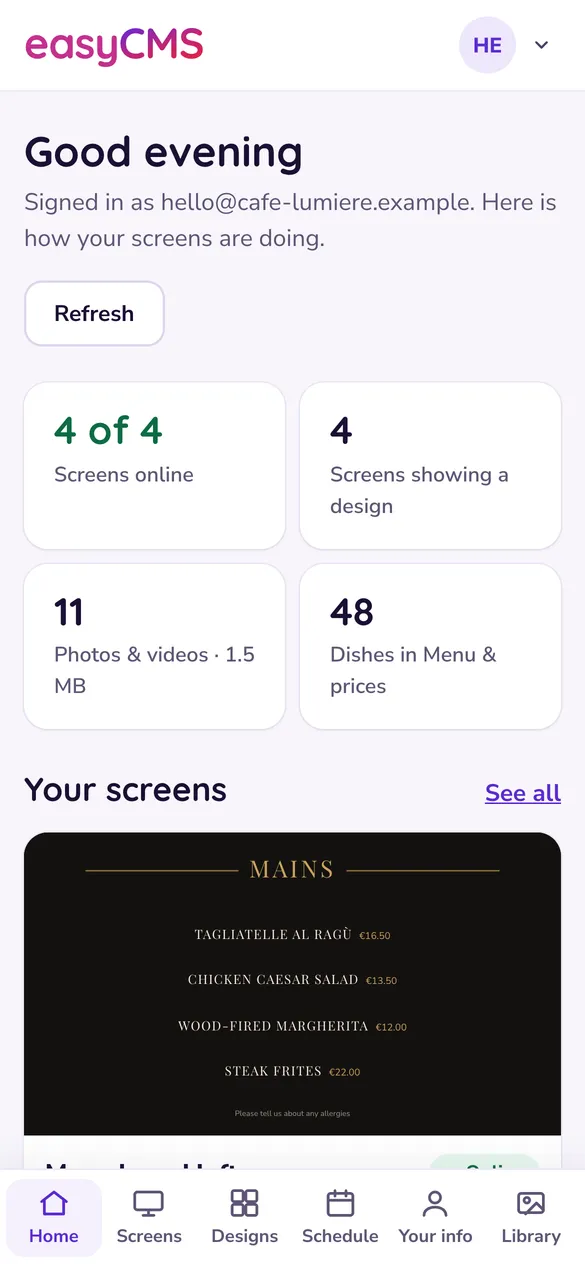
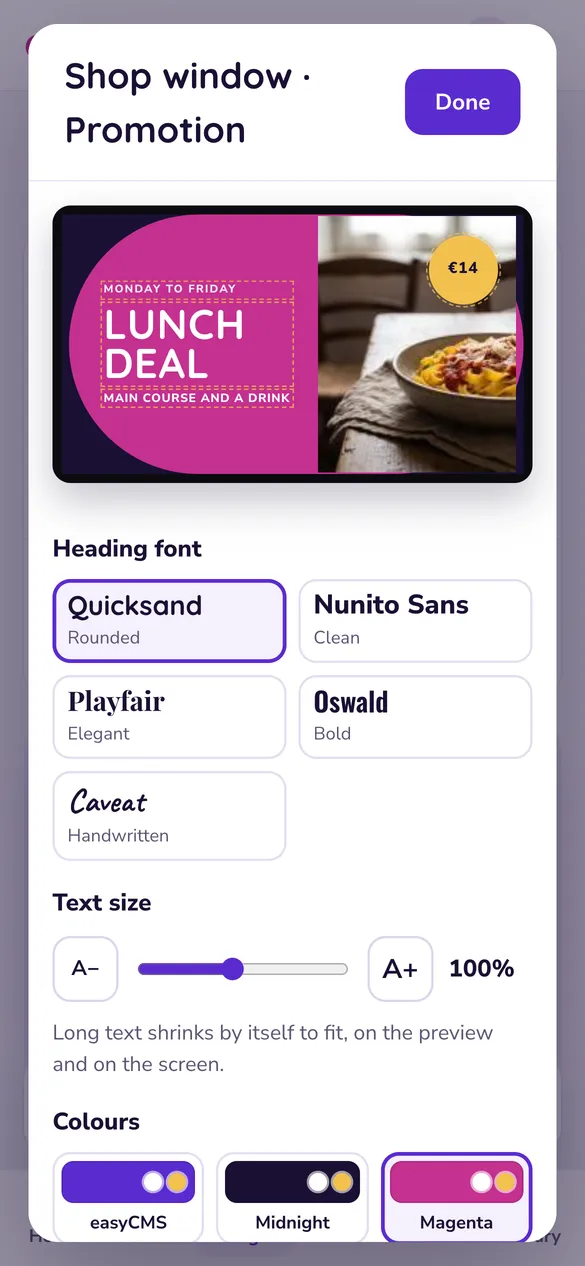
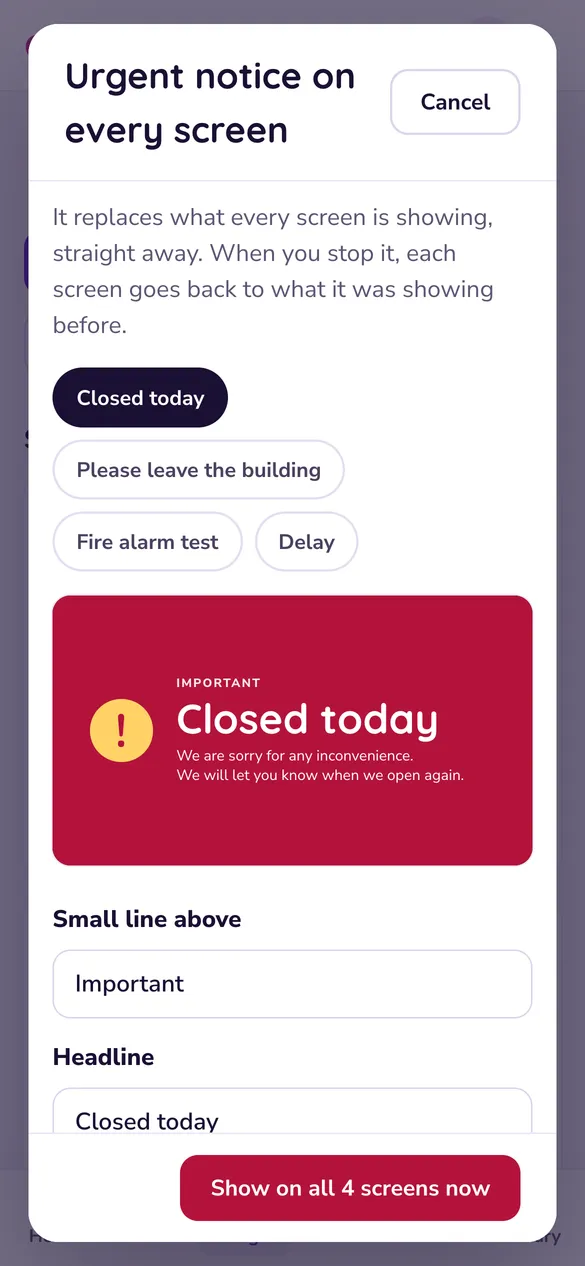
A day with Studio
A café with four screens, on an ordinary Tuesday.
07:00 · Breakfast plays by itself
The breakfast board is set to repeat every weekday morning. Nobody touches anything.
11:15 · A new lunch special
Typed on the phone between two coffees: pasta of the day, 12€. Sent to the window screen.
14:00 · It starts to rain
The hot chocolate offer, set for wet days, takes over the window on its own.
15:30 · Sold out
The apple tart is gone. One tap in Menu & prices and every menu board drops it.
18:00 · Closing early
A burst pipe. Urgent notice, “Closed today”, on all four screens in two taps.
Designs for every kind of business
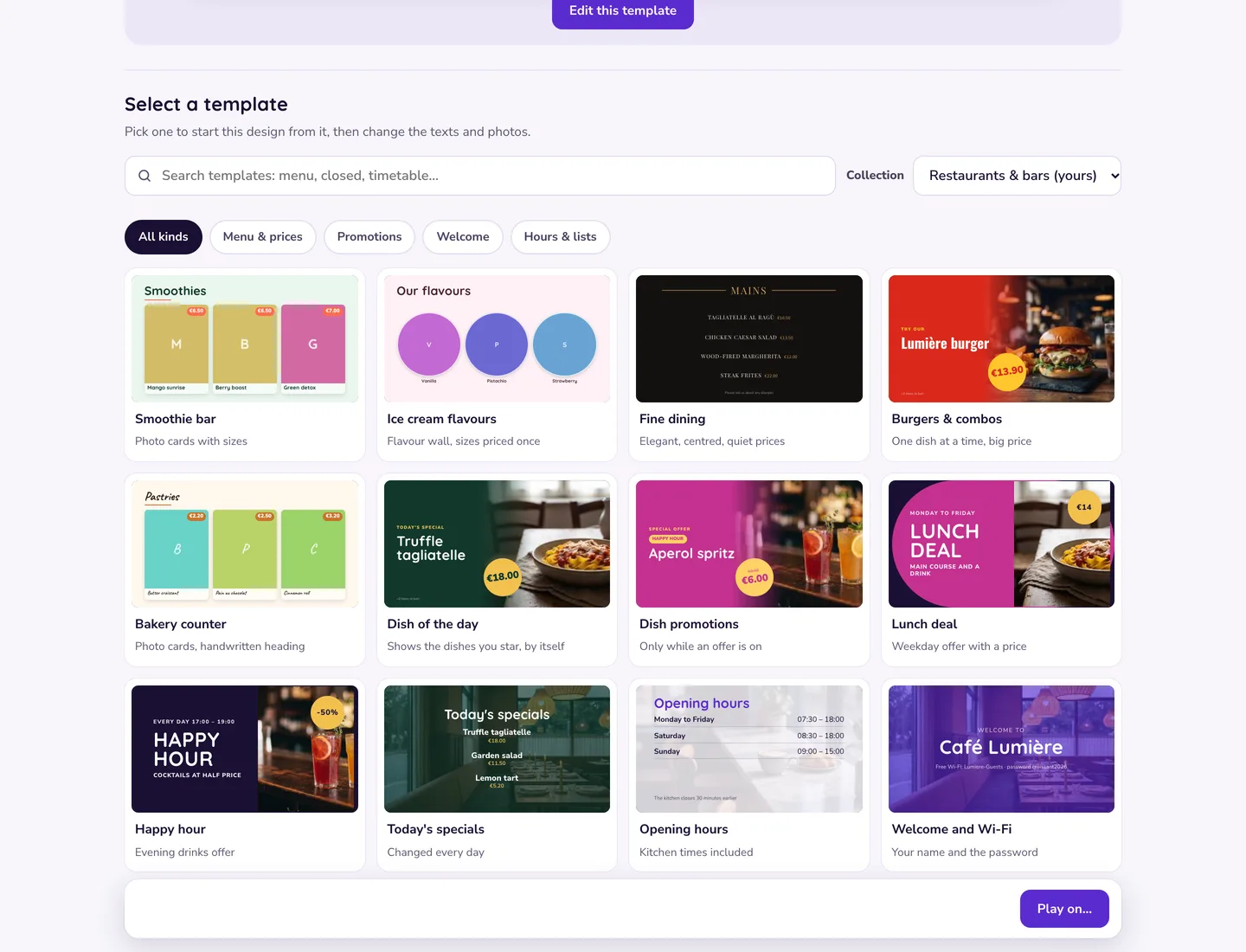
Studio asks once what kind of business you run, and shows those designs first. Nothing is hidden: you can search all of them, any time. See every one on our templates page.
| Your business | Designs you can use straight away |
|---|---|
| Restaurant, café or bar | Lunch deal, Happy hour, Today’s specials, Opening hours, Welcome and Wi-Fi |
| Shop | Window offer, New collection, At the till, Sale countdown |
| Office | Visitor welcome, Company news, Meeting room door, Target board |
| School | Closure notice, Exams today, Exam countdown, Student work slideshow |
| Clinic or pharmacy | Waiting room welcome, Running late, Meet the team |
| Hotel | Lobby welcome, Breakfast times, Spa hours, Lift lobby directions |
| Gym | Joining offer, Monthly challenge, The class on now, Our trainers |
| Stadium | Next match, Live score, Team sheet, Big arrow to the gates |
| Factory | Days without an accident, Safety message, Shift times |
| Church | Service times, This week, Appeal with a progress bar |
A row of screens above a counter? More than 70 ready-made sets fill two to four screens in one go.
How Studio compares
Most signage apps charge every month for every screen. Studio does not.
| easyCMS Studio | A typical subscription app | |
|---|---|---|
| How you pay | Once: 49€, first screen included | Every month, for every screen |
| Three screens over five years | 181€ | About 1,440€ at 8€ a screen a month |
| Free plan | No | Some have one, often with their logo on your screen |
| Where your data lives | In the EU | Depends on the app |
The detail is in our software comparison.
Already using classic easyCMS?
- Nothing is lost. Your classic layouts keep playing where they are scheduled.
- We rebuild them for free. Want a classic layout as a Studio design? Ask us and we show you before anything changes on your screens.
- Your prices are already there. Menu & prices edits the same menu your screens show.
- Classic is one tap away, in the account menu, whenever you need it.
Get started in three steps
1. Sign in
Open app.myeasycms.com/studio with your easyCMS account. New to easyCMS? Start with one screen for 49€, once.
2. Add a screen
Choose your player and follow three steps. Do it on the same Wi-Fi as the screen and Studio finds it. How it works.
3. Pick a design
Change the words, tap Play on… and it is on the wall.
Stuck anywhere? Our team is happy to help. Still on easyCMS V3? Ask us about moving your screens across.