Display-Überwachung
Überwachen Sie Ihre easyCMS-Bildschirme vom Handy aus: Online-Status, Bildschirmzustand, Bilder auf Abruf, Offline-Warnungen und Proof-of-Play-Berichte in den Statistiken von Studio.
Wissen, dass Ihre Bildschirme laufen, ohne hinzufahren und nachzusehen. Studio zeigt Ihnen alles auf dem Handy.
Jeden Bildschirm prüfen
- Öffnen Sie Startseite in Studio. Bitte prüfen listet Bildschirme auf, die offline sind, wenig Speicher haben, denen Dateien fehlen oder die ein Problem melden.
- Öffnen Sie Meine Bildschirme. Jeder Bildschirm zeigt Online oder Offline, was er gerade anzeigt und ob er Hat alle Inhalte meldet.
Ein Bildschirm kann online sein und trotzdem alte Inhalte zeigen, solange Neue Inhalte werden heruntergeladen… angezeigt wird. Warten Sie auf Hat alle Inhalte, bevor Sie annehmen, dass etwas kaputt ist.
Einen Bildschirm genauer ansehen
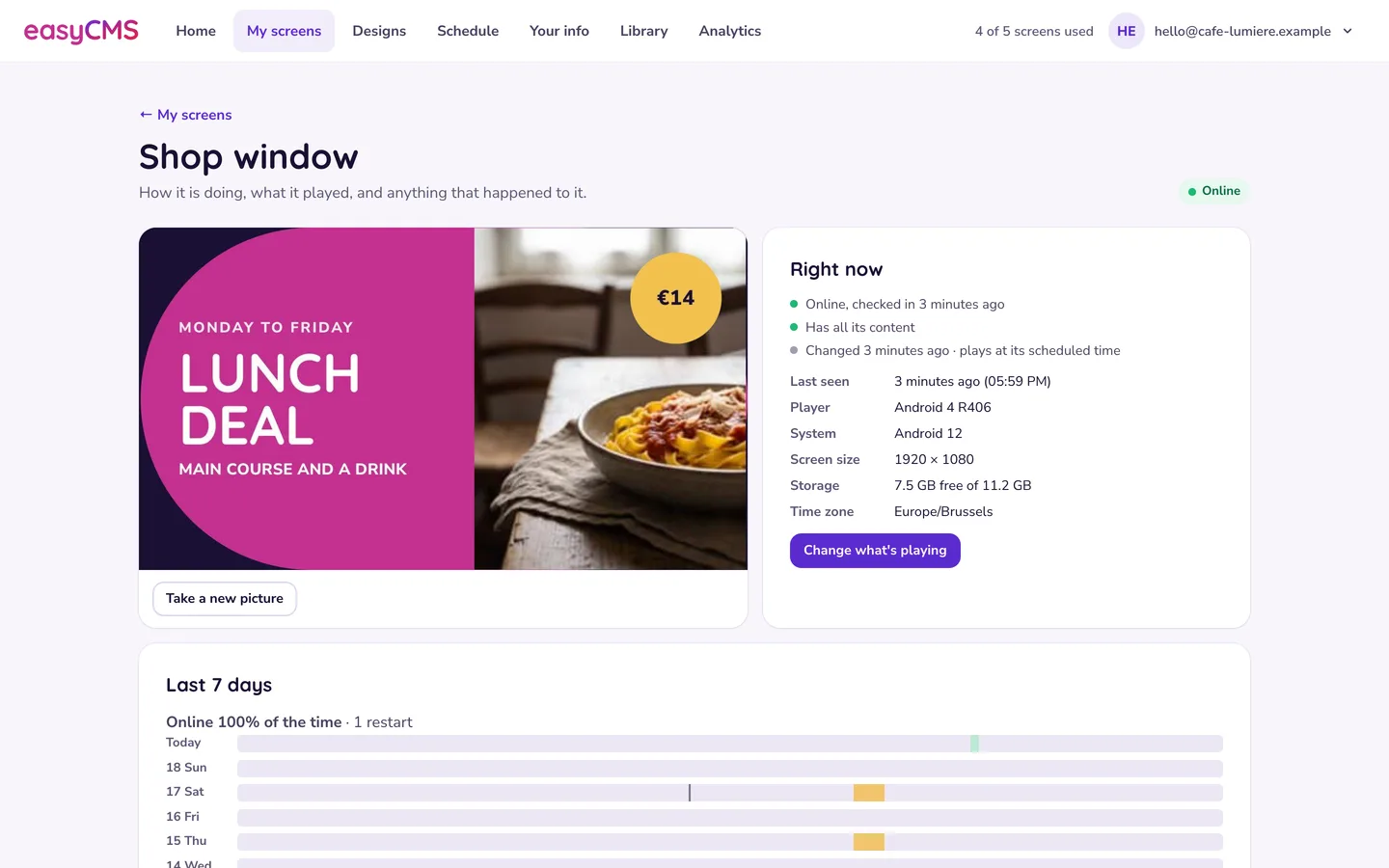
Tippen Sie in Meine Bildschirme beim Bildschirm auf Angaben:
- Neues Bild aufnehmen zeigt, was gerade auf dem Bildschirm ist. Manche Player senden es erst beim nächsten Check-in.
- Gerade jetzt zeigt den letzten Check-in, den Player, die Bildschirmgröße, den freien Speicher und die Zeitzone.
- Letzte 7 Tage zeigt Online-Zeit, Offline-Zeit und Neustarts.
- Was passiert ist listet Ereignisse in einfachen Worten auf, etwa einen Stromausfall oder eine unterbrochene Internetverbindung.
Studio hat keine Schaltfläche für Neustart, Cache leeren oder Befehle: Senden Sie eine Support-Anfrage mit dem Namen des Bildschirms.
Nachweisen, was abgespielt wurde
Statistiken im Menü von Studio zeigt jedes Design, jedes Foto und jedes Video, das Ihre Bildschirme gezeigt haben, und wie lange. Wählen Sie Zeitraum und Bildschirme, sehen Sie nach Designs, Fotos & Videos oder Bildschirme, dann CSV herunterladen oder Drucken oder als PDF speichern. Das ist in jedem Tarif enthalten, auch im 49€-Konto. Die letzte halbe Stunde ist eventuell noch nicht gezählt.
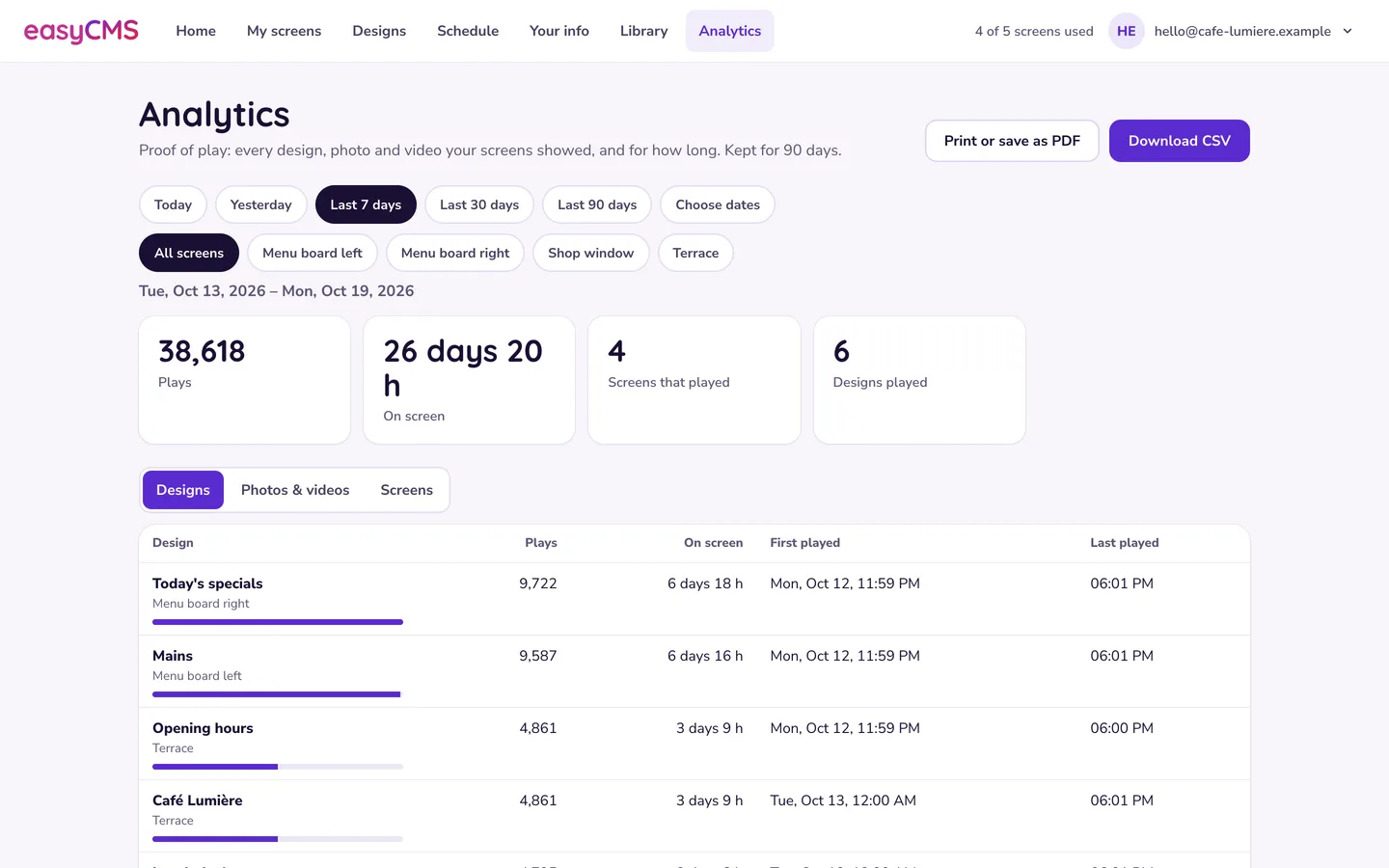
Achtung Wiedergabestatistiken werden 90 Tage aufbewahrt. Laden Sie herunter, was Sie länger behalten müssen, zum Beispiel am Ende jeder Kampagne. Ältere Daten lassen sich nicht wiederherstellen.
E-Mail-Warnungen, wenn ein Bildschirm verstummt
Die Warnungseinstellung gilt für das ganze Konto und liegt in einem Bereich, den Ihr Login nicht öffnet. Teilen Sie uns mit, welche E-Mail-Adresse die Warnungen erhalten soll und wie lange ein Bildschirm vorher still sein darf. Halten Sie diese Zeit über dem Check-in-Intervall, sonst meldet jeder Bildschirm bei einem normalen Check-in eine Warnung.
Player melden sich in einem festen Intervall und spielen dazwischen aus ihrem eigenen Speicher. Ein Bildschirm, der ein paar Minuten still ist, ist einfach zwischen zwei Abrufen. Sorgen sollten Sie sich machen, wenn er mehrere hintereinander verpasst.
Im erweiterten Editor
Die Seite Displays im klassischen easyCMS zeigt pro Bildschirm Angemeldet, Download-Status und Letzter Zugriff. Letzter Zugriff vor wenigen Minuten: Prüfen Sie Ihre Inhalte oder Ihren Zeitplan. Stunden oder Tage: Strom oder Netzwerk vor Ort. Wochen: siehe Probleme mit der Player-Lizenz. Das Zeilenmenü hat Screenshot anfordern; wenn Bilder erst beim nächsten Check-in ankommen, siehe „Jetzt abrufen“ bewirkt nichts. Klassische Berichte finden Sie unter Reporting > All Reports.
Verwandte Artikel: Display wird als offline angezeigt, Display ist online, aber der Inhalt ändert sich nie, Das Statusfenster des Players lesen, Speicherkontingent und Medien-Uploads