Playlists and the Media Library
Upload photos and videos to the easyCMS Studio Library, build playlists in your own order, and put them on a screen. Plus formats, durations and dynamic playlists in the advanced editor.
The Library in easyCMS Studio keeps your photos, videos and playlists. A playlist is photos and videos in your own order; change it once and every screen playing it updates.
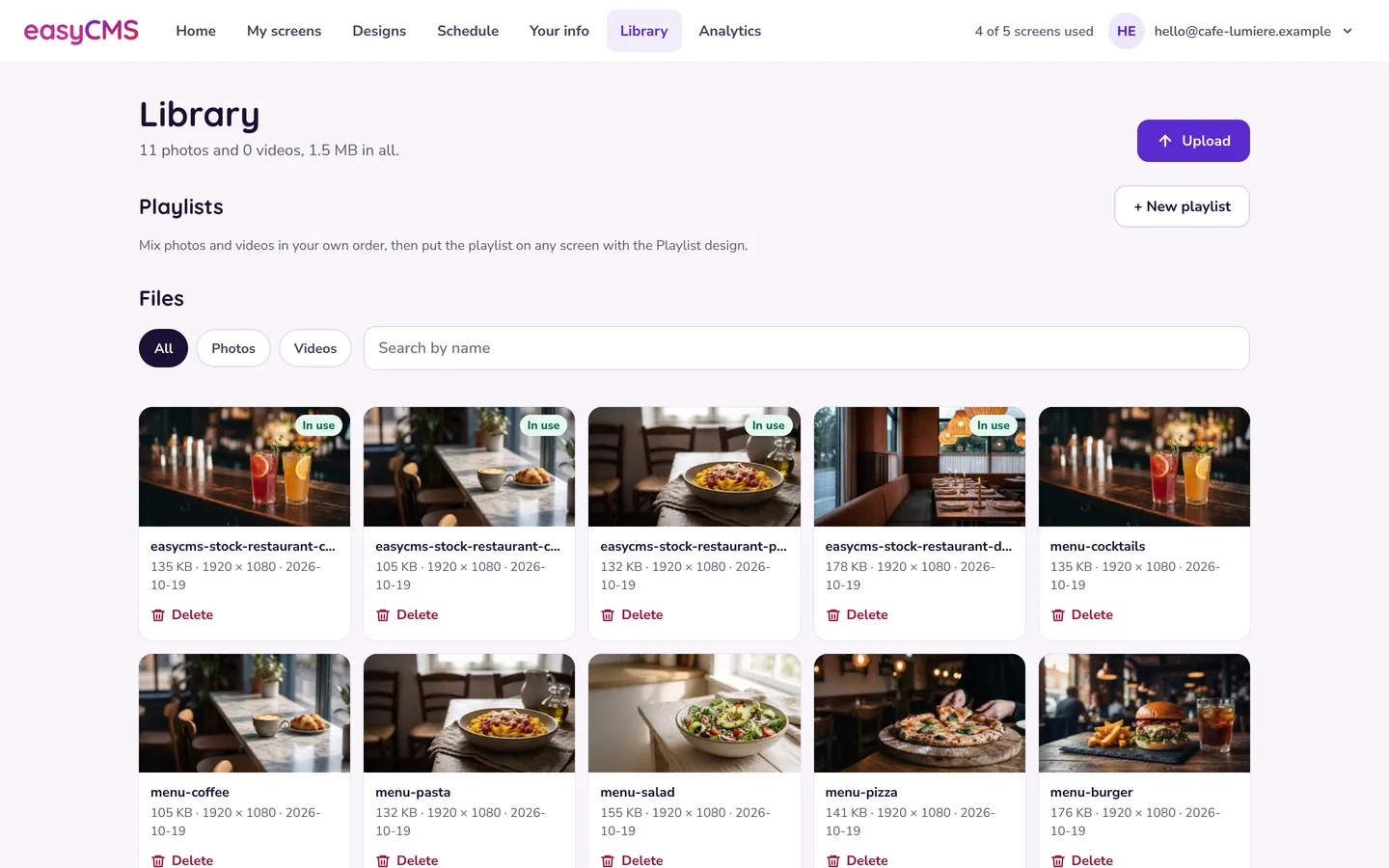 The Library shows how many photos and videos you have, and their total size.
Upload photos and videos
- Open Library in Studio.
- Tap Upload, or drop files anywhere on the page.
| Kind | Formats Studio accepts | Tip |
|---|---|---|
| Photos | JPG, PNG, GIF, WebP | Animated GIFs do not animate on any player: use a short MP4 instead. |
| Videos | MP4, WebM, MOV | MP4 (H.264 with AAC audio) plays reliably on every player. |
Keep files small: see storage quota and media uploads.
A file marked In use cannot be deleted until you take it out of the design or playlist using it.
Build a playlist
- In Library, tap + New playlist and give it a Name.
- Tap + Add photos & videos: pick from your Library, or Upload from this device.
- Set the seconds for each photo. Videos play to their end.
- Drag items into order, or use the arrows.
- Tap ▶ Play preview to check it, then Save playlist.
Put it on a screen
A photo, video or playlist goes on a screen inside a design:
- In Designs, tap New design and pick the Playlist template (or Full-screen video or Photo slideshow).
- Choose your playlist, photos or video, and Save.
- Tap Play on…, choose the screens, and Send.
Editing the playlist later updates every screen playing it, within a minute.
In the advanced editor
The classic Library > Media does more, for layouts built in the advanced editor:
- More ways in: upload by URL, add audio (MP3), rename files, and organise with tags and folders.
- Replace or retire: replace a file so existing layouts pick up the new version, or retire it so it can no longer be added anywhere.
- Item dates: give a playlist item start and end dates, so seasonal content expires by itself.
- Widgets: tickers, weather, clocks and web pages go into playlists as widgets, with the duration you set on their Advanced tab.
- Global playlists: schedule one straight to a screen from its row menu with Schedule.
Dynamic playlists
A dynamic playlist fills itself from a filter, usually a tag. Tick Dynamic when you add the playlist, then set the criteria on its Filter tab. Tag every promotion “promo”, and uploading a new tagged image is all it takes to update the screens.
Tip Set the maximum number of files while you are there. Without a cap, a growing tag makes a playlist far longer than the loop you planned.
Related articles: Creating Layouts, Scheduling Content, Dynamic Content with DataSets