Creating a Menu Board for Your Restaurant
Make a restaurant menu board in easyCMS Studio: type your dishes and prices once in Menu & prices, pick a menu template, and change a price or mark a dish sold out from your phone. Plus the classic Menu Board template in the advanced editor.
A menu board has two parts: the menu (dishes and prices) and the design that shows it. Type the menu once; a new price or a sold-out dish never means opening the design again.
In Studio
1. Type your menu
- In Studio, open Your info, then the Menu & prices tab.
- Your first menu is already there. For another one (Lunch, Drinks), tap + New menu, type its name and tap Create menu.
- Add the parts of your menu with + Part, or tap one Studio suggests, such as + Mains.
- Under each part, fill in Add a dish to …: name, description if you like, and price. Tap Add.
- Tap a dish to open it and add Sizes, Allergens, a Promotion or a photo.
Prices are plain numbers, for example 12.50. Changes save as you go. No Menu & prices tab? Set your kind of business under Your business in the account menu.
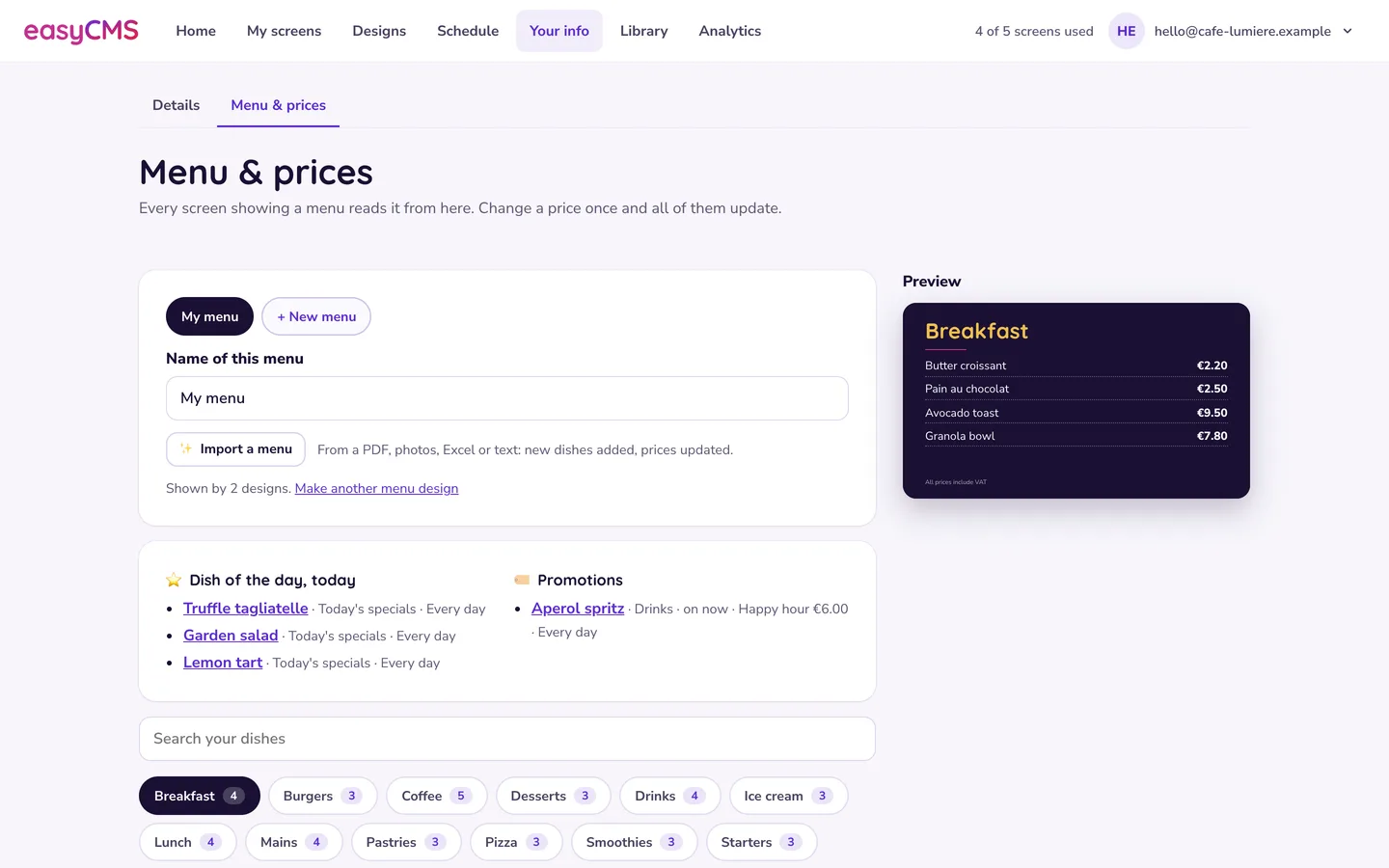 One menu feeds every menu screen.
Tip Already have a menu on paper or in a PDF? ✨ Import a menu reads a PDF, photos of a printed menu, Excel, CSV or pasted text (up to 12 files, PDFs up to 15 MB, no Word files). Check the prices and allergens before it goes on screen.
2. Make the design
- Tap Make a menu design under the menu’s name, or open Designs and tap New design.
- Pick a menu template, such as Menu board, Menu with photo, Today’s specials or Big menu (several parts on one screen).
- Tap Edit this template. If you have more than one menu, choose Which menu. Then choose the Part of the menu this screen shows.
- Tap Done, then Save.
- Tap Play on…, tick the screen and tap Send.
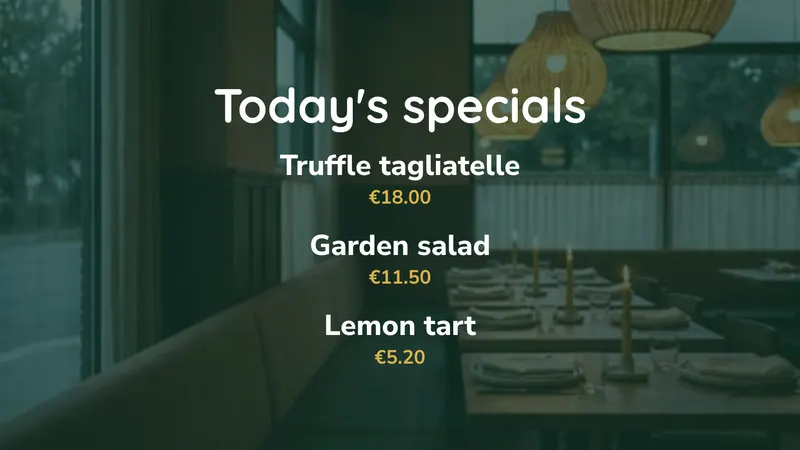
3. Change prices and dishes later
- New price: type it in the dish’s price box.
- Sold out: tap Available next to the dish. It turns to Sold out. Tap again when it is back.
- New dish: add it under the right part.
Every screen showing that menu updates within a minute.
Watch out Allergy information on screen supports your process. It does not replace the allergen documentation your local rules require. Keep the paper version current and make one person responsible for both.
In the advanced editor
The classic easyCMS Menu Board template gives a board with your own logo and layout, reading the same menu as Studio. It needs easyCMS V4 at app.myeasycms.com, not V3.
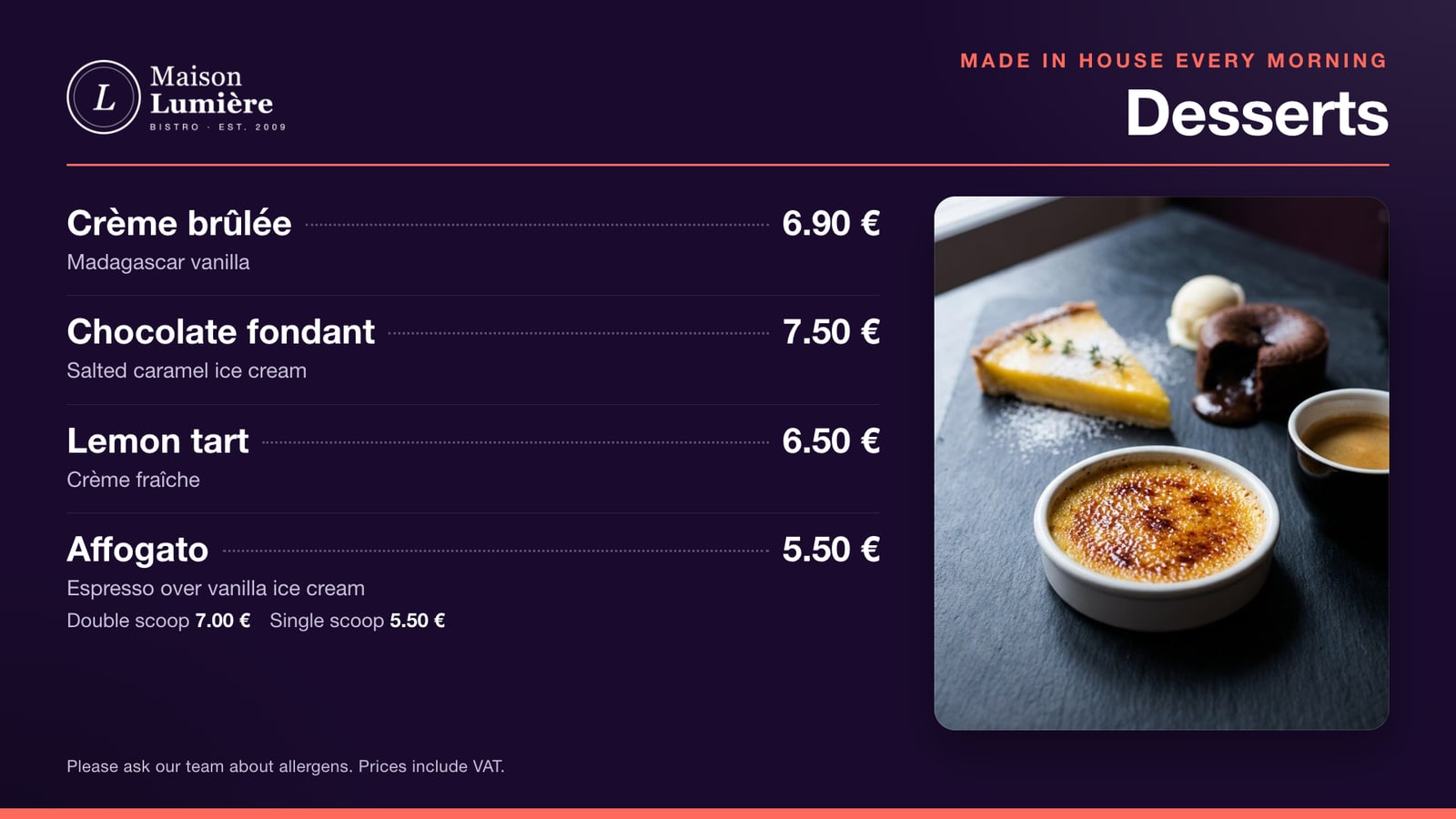 The finished board at 1920 × 1080. Everything except the logo, heading and photo comes from the menu.
First upload your logo (a transparent PNG) and dish photos to Library > Media. The template is made for landscape Full HD. Plan one category per screen.
Step 1: Create the menu and its categories
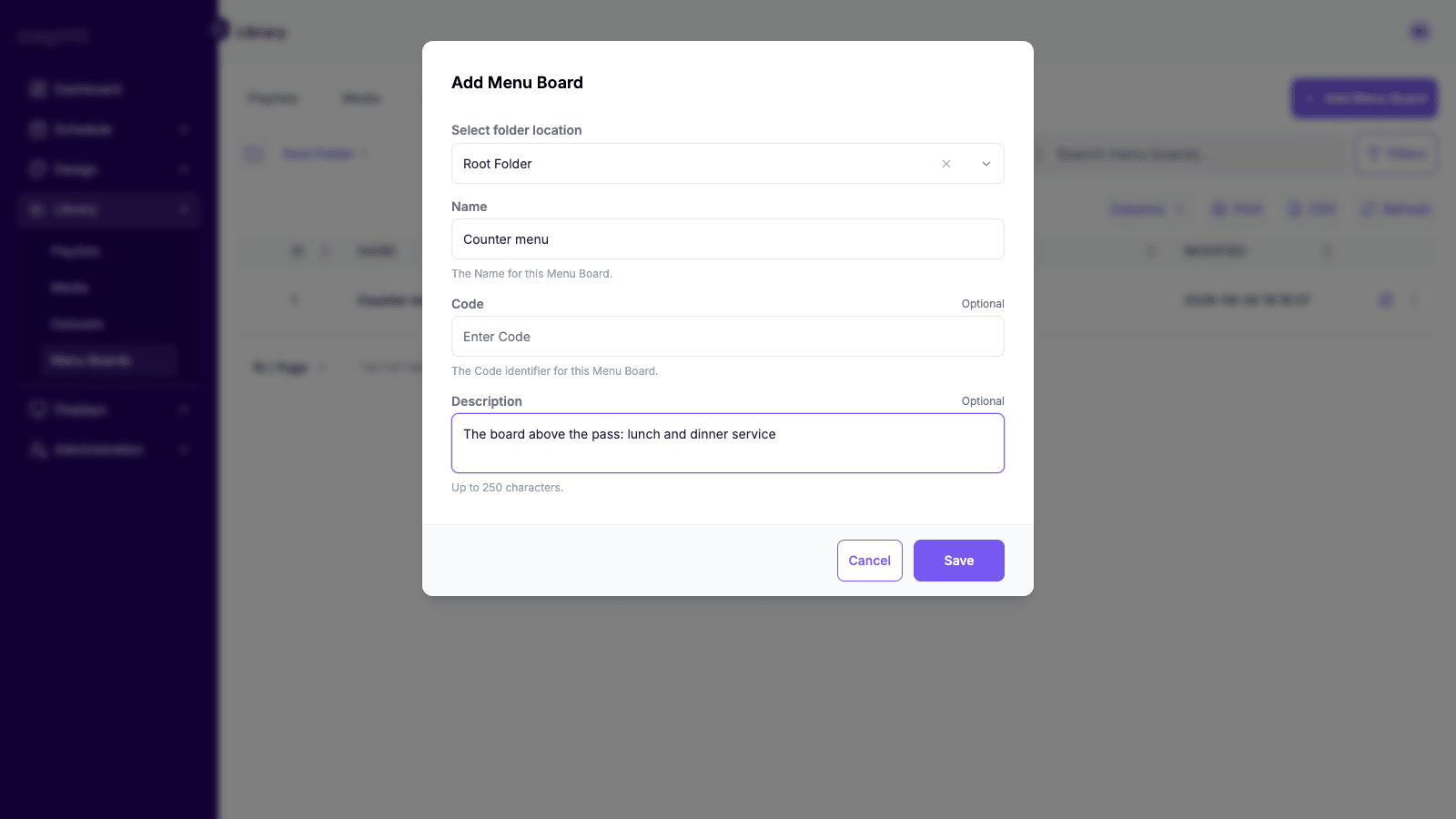
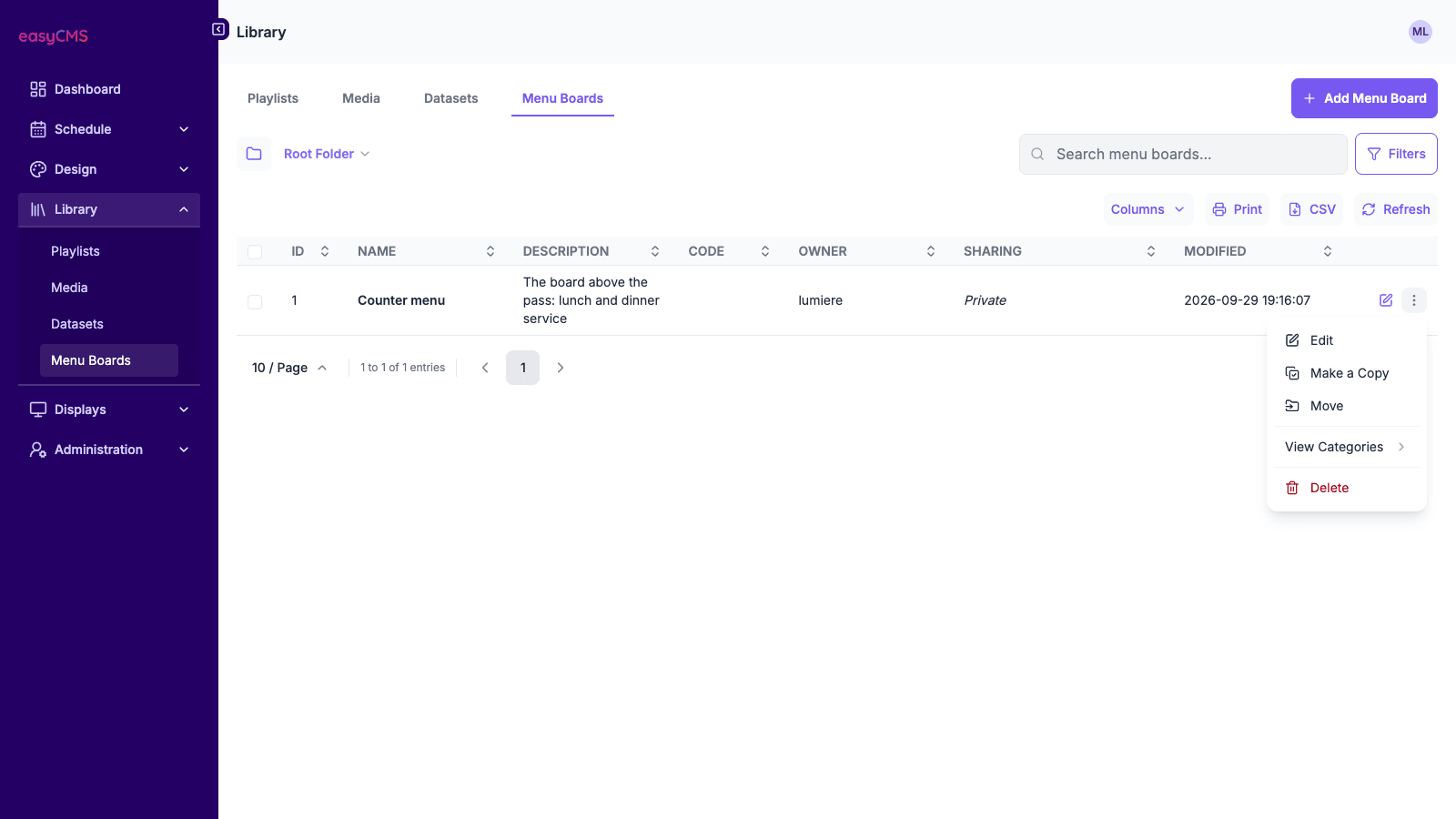
- Go to Library > Menu Boards and click Add Menu Board. Give it a Name, such as “Counter menu”, and Save. Code and Description can stay empty.
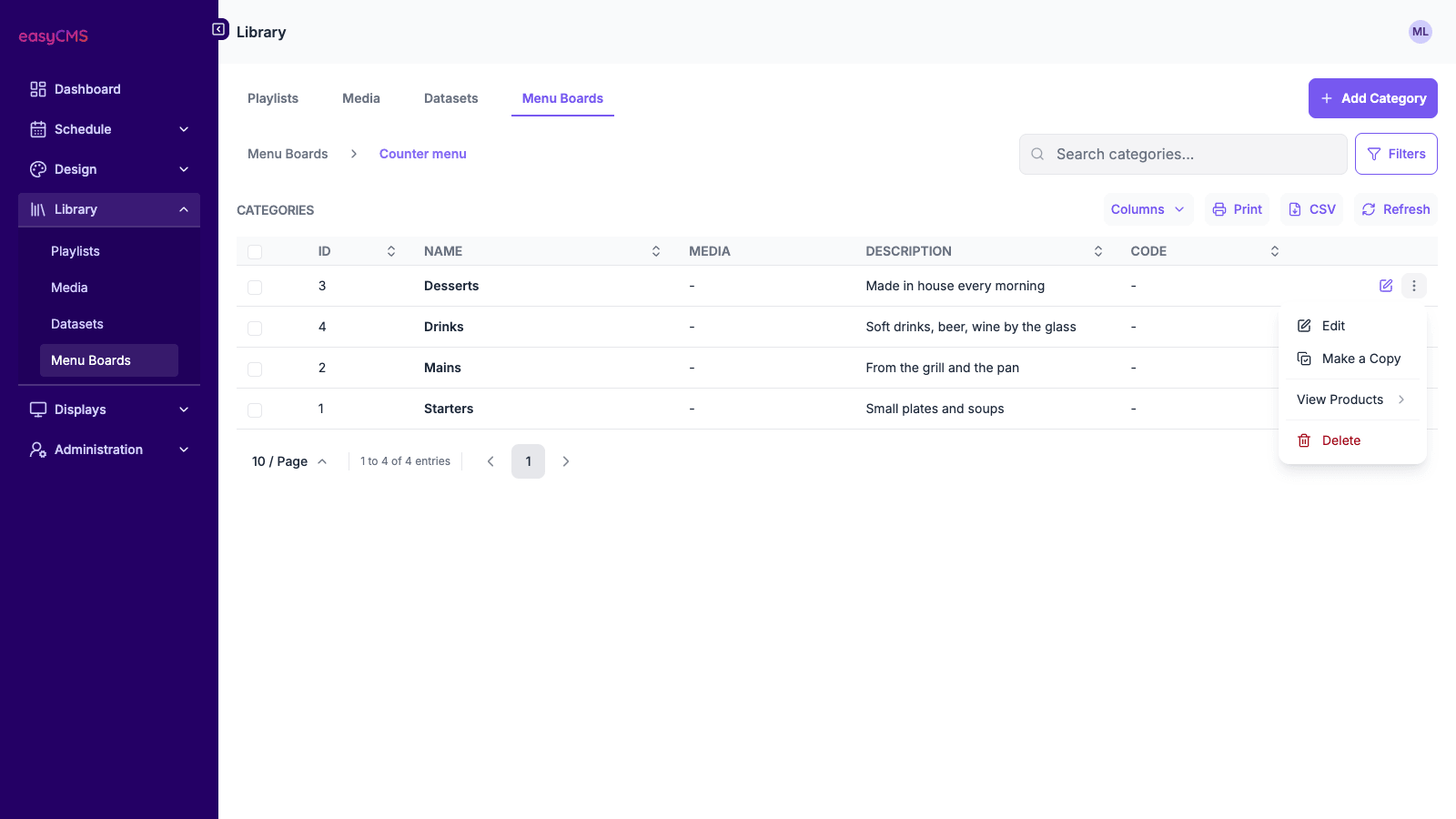
- In its row menu (the three dots), choose View Categories, then Add Category. Enter a Name, such as “Desserts”. Next saves it and starts the next one.
Step 2: Add dishes and prices
- In a category’s row menu, choose View Products, then Add Product.
- On General: Name, Price (a number only, such as 7.90), Display Order (1, 2, 3… or gaps of ten), an optional Media photo, and Availability left On.
- On Details: optional Description, Allergy Information and Calories.
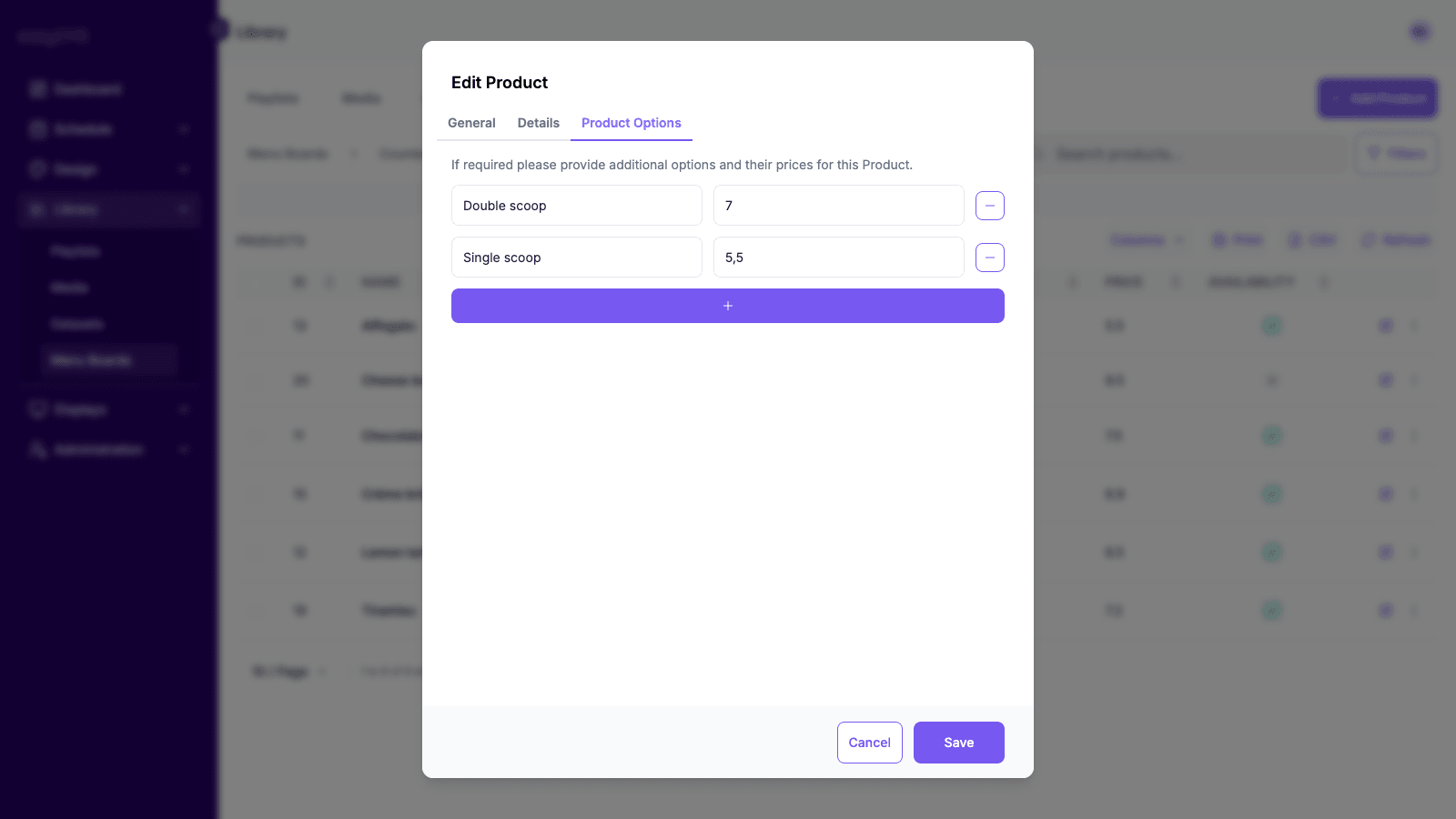
- On Product Options: sizes or extras, each with a name and price. They appear in alphabetical order, so name them “1 scoop”, “2 scoops”.
- Next saves and starts another dish; Save for the last one.
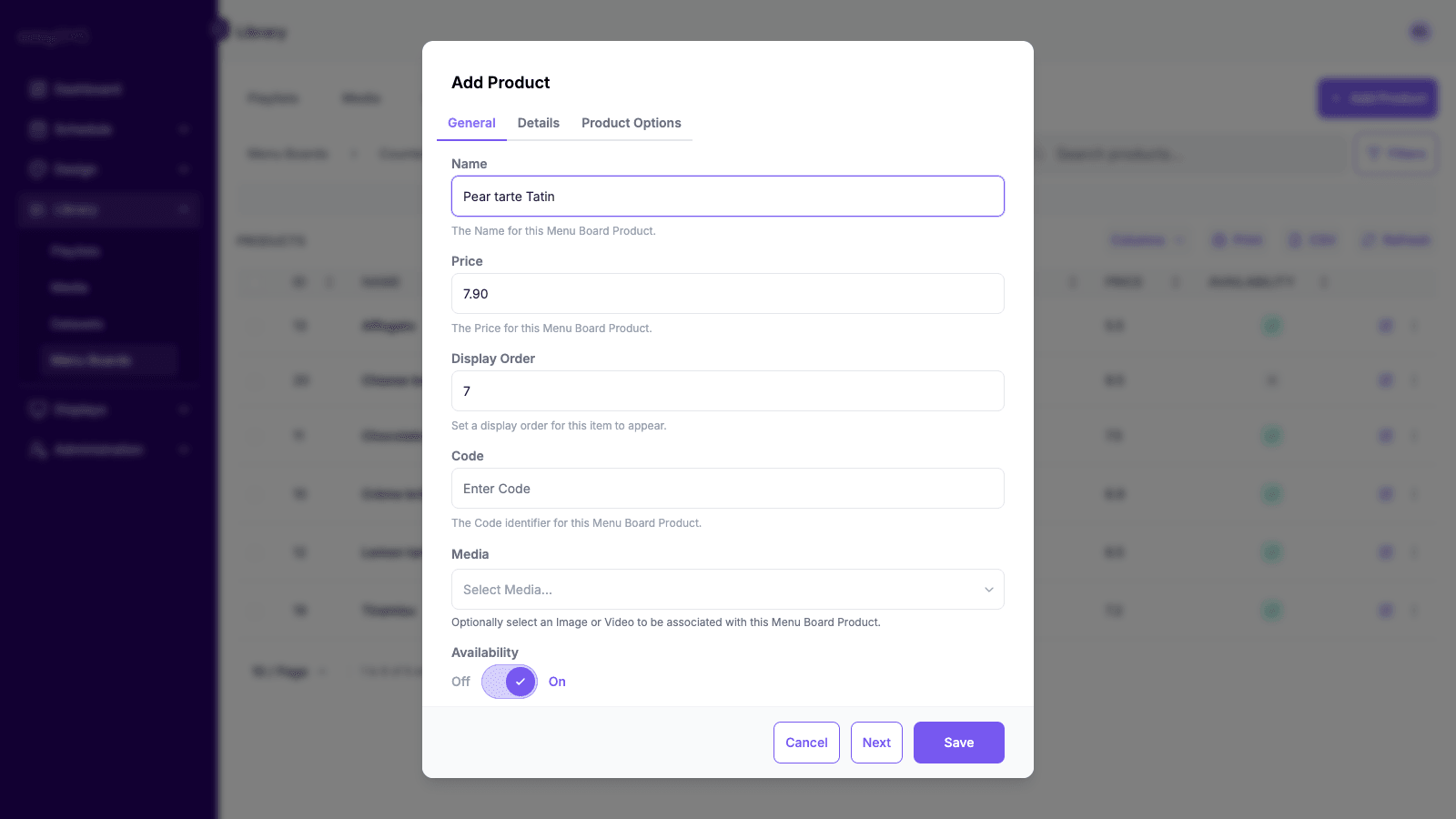
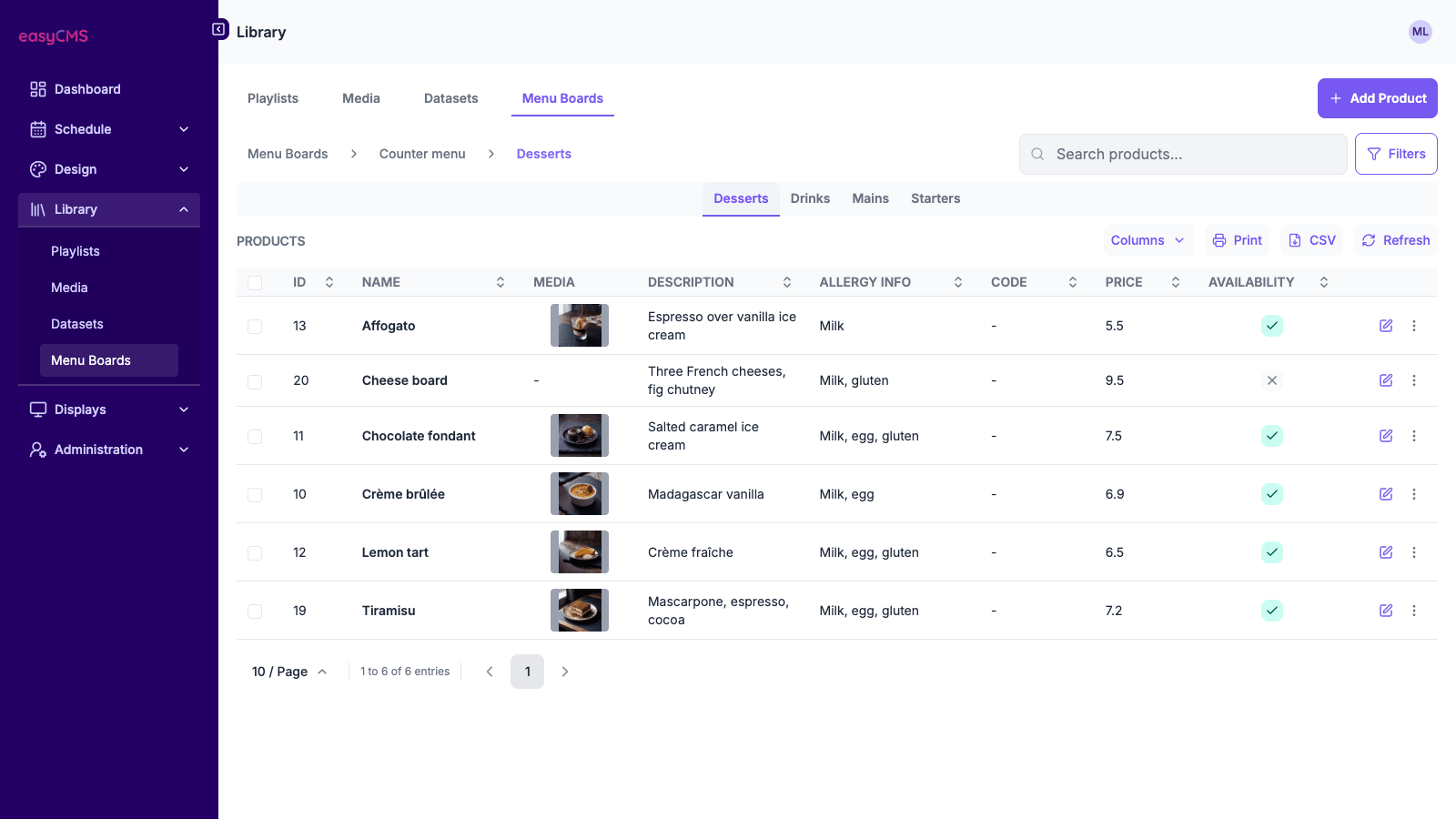 A cross in the Availability column means the dish is switched off.
Step 3: Put the template on a layout
- At Design > Layouts, click Add Layout, name it after the screen and leave the Resolution at 1080p HD Landscape.
- Open the Toolbox. Under Data Widgets, click the small arrow on Menu Board: Products, and drag easyCMS Menu Board (under Static Templates) onto the canvas.
- On the Positioning tab, click Make this full screen.
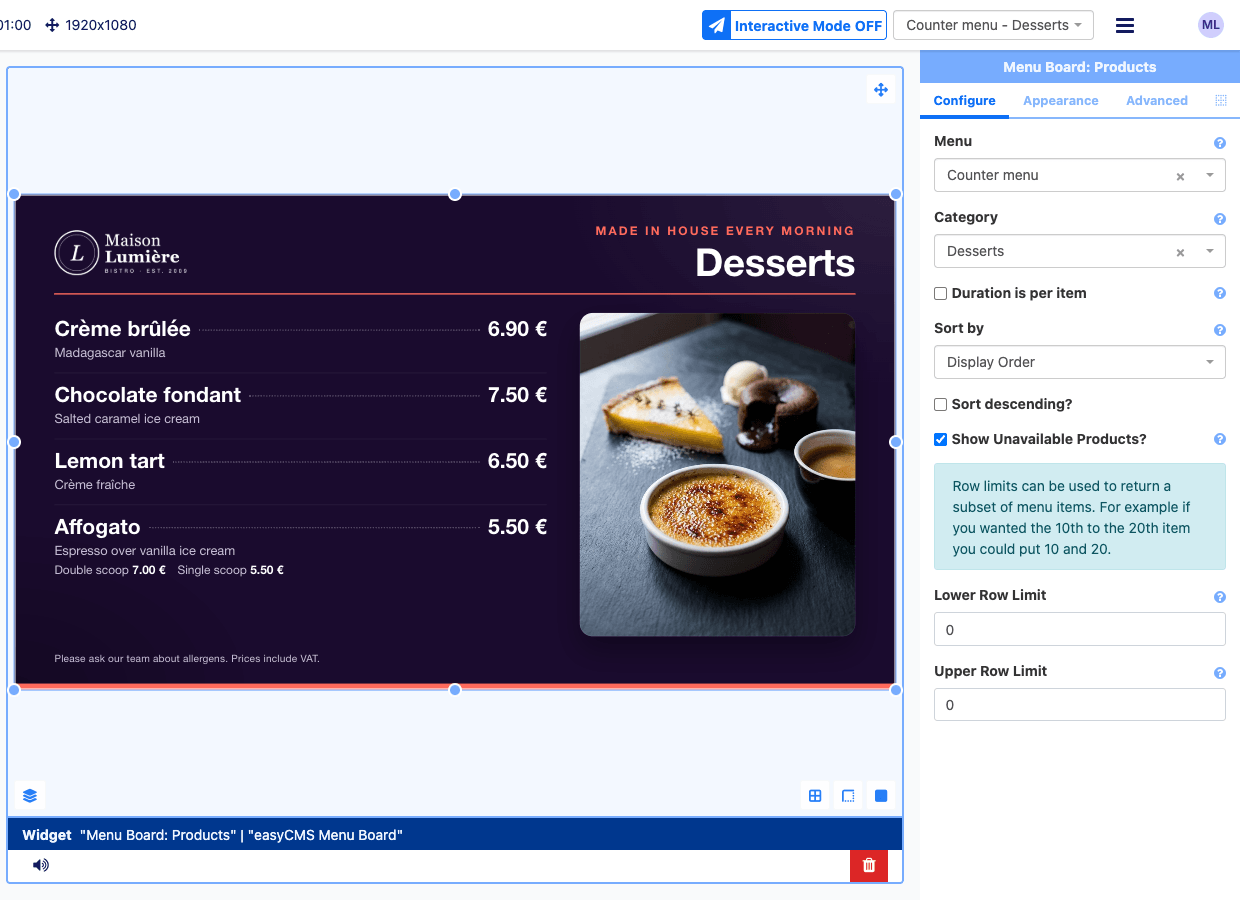
- On the Configure tab, pick the Menu and the Category. Leave Sort by on Display Order. Tick Show Unavailable Products? if sold-out dishes should stay on screen, marked sold out. Leave the row limits alone.
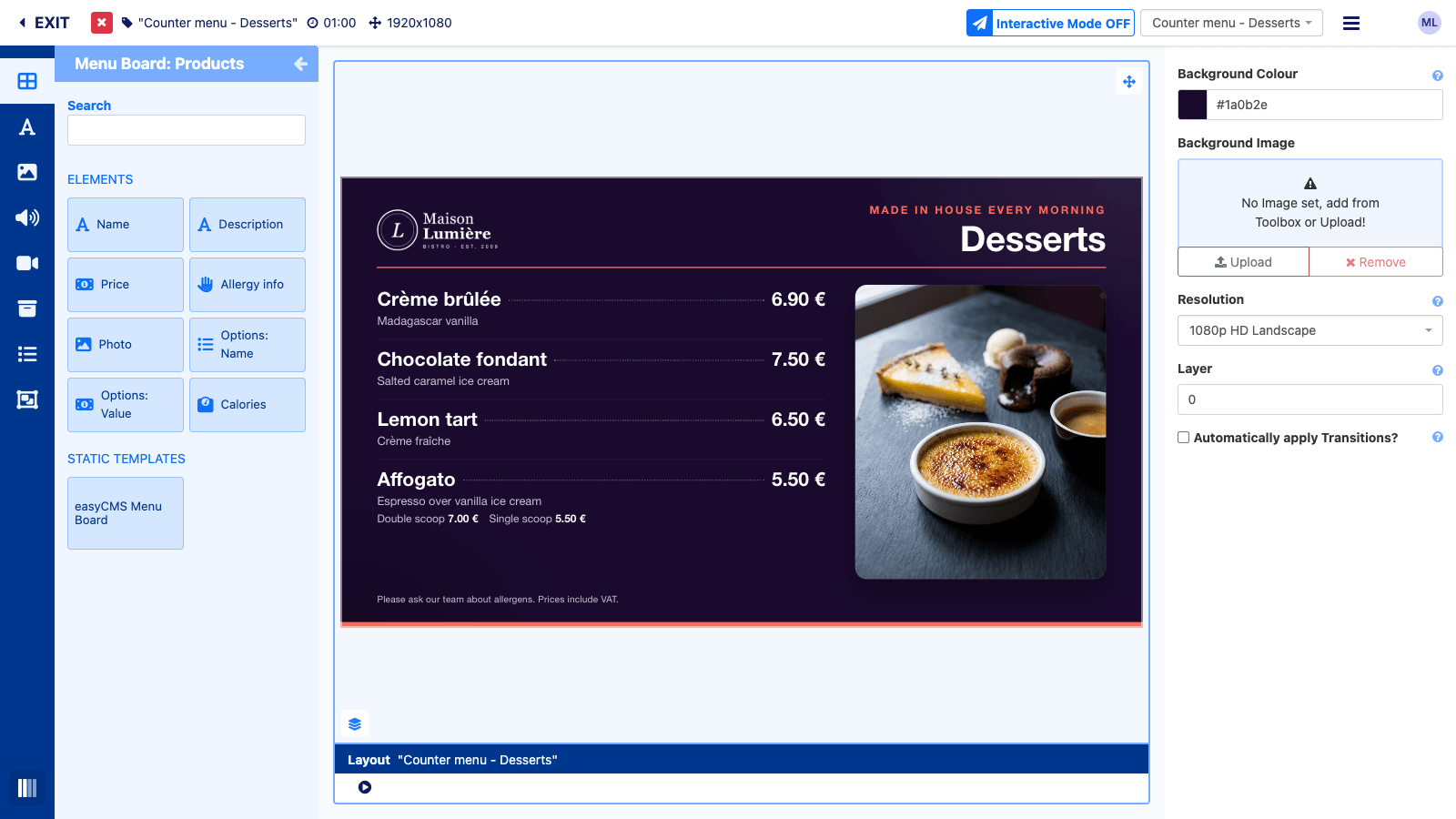
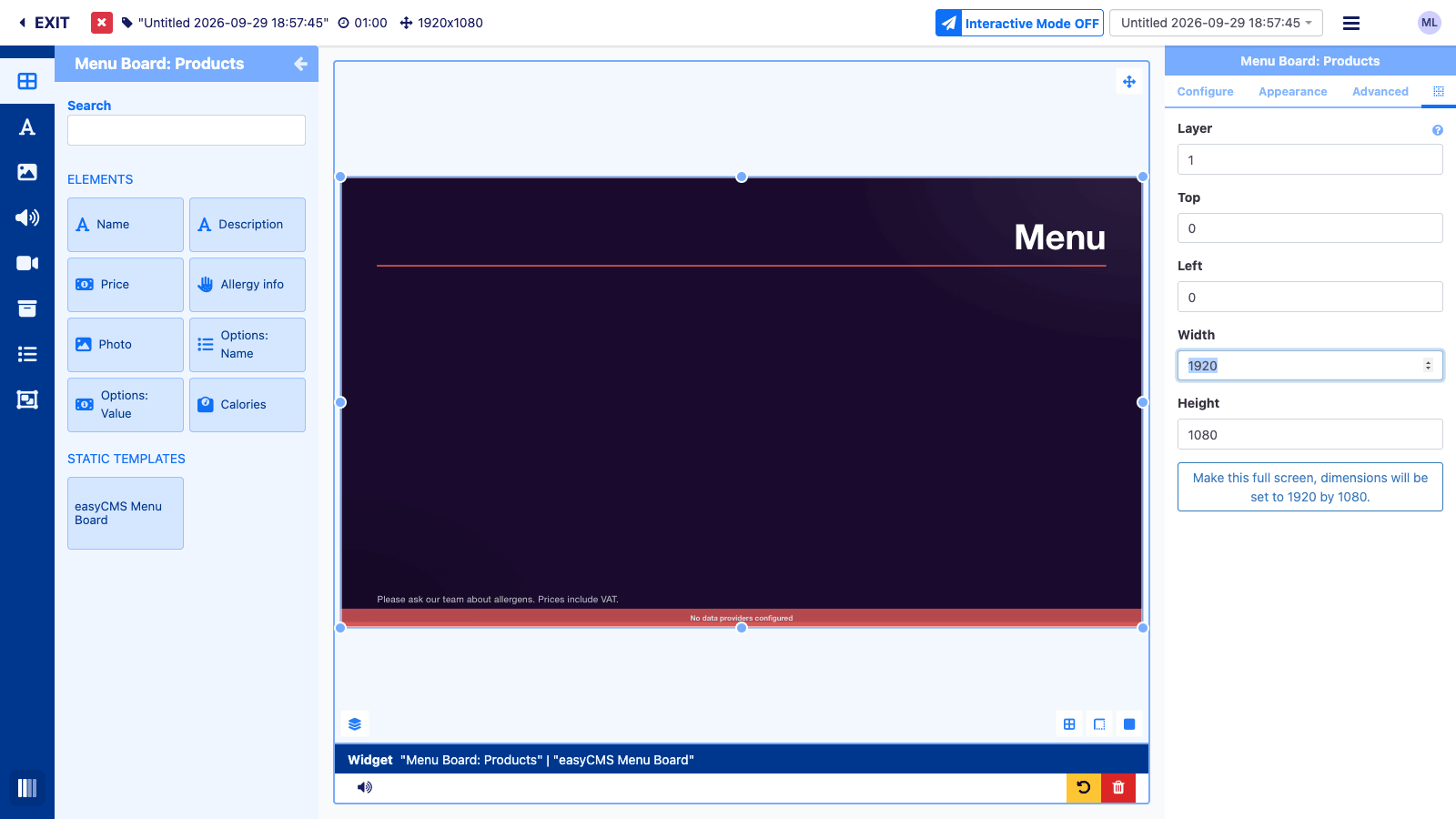 Until you choose a menu, the canvas shows “No data providers configured”. That is expected.
Step 4: Style it once
The Appearance tab makes the board yours.
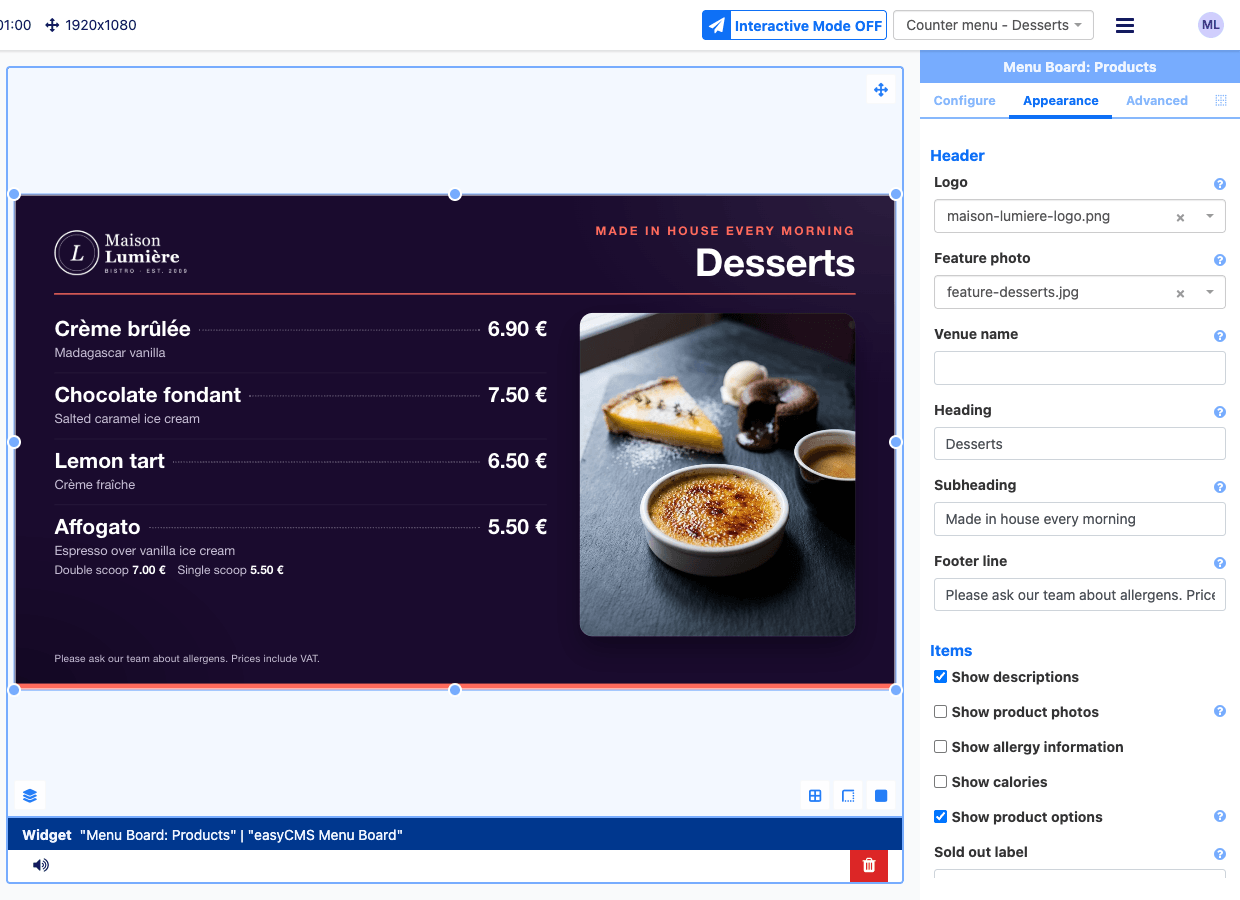
| Setting | What it does |
|---|---|
| Logo, Venue name | Your logo top left, or the name when there is no logo. |
| Feature photo | An optional photo panel on the right. |
| Heading, Subheading, Footer line | The title, the line above it and the small print. |
| Show descriptions, photos, allergy information, calories, product options | What each dish shows. |
| Sold out label, Allergens label | The wording on screen, for example in French. |
| Unavailable products | Dimmed, dimmed with a Sold out tag, or price struck through. |
| Items per page, Seconds per page | How many dishes a page holds, and for how long. |
| Currency symbol, Symbol position, Decimal separator | 14.50 €, €14.50 or 14,50 €. |
| Font and colours | Background, accent, text and price colours. |
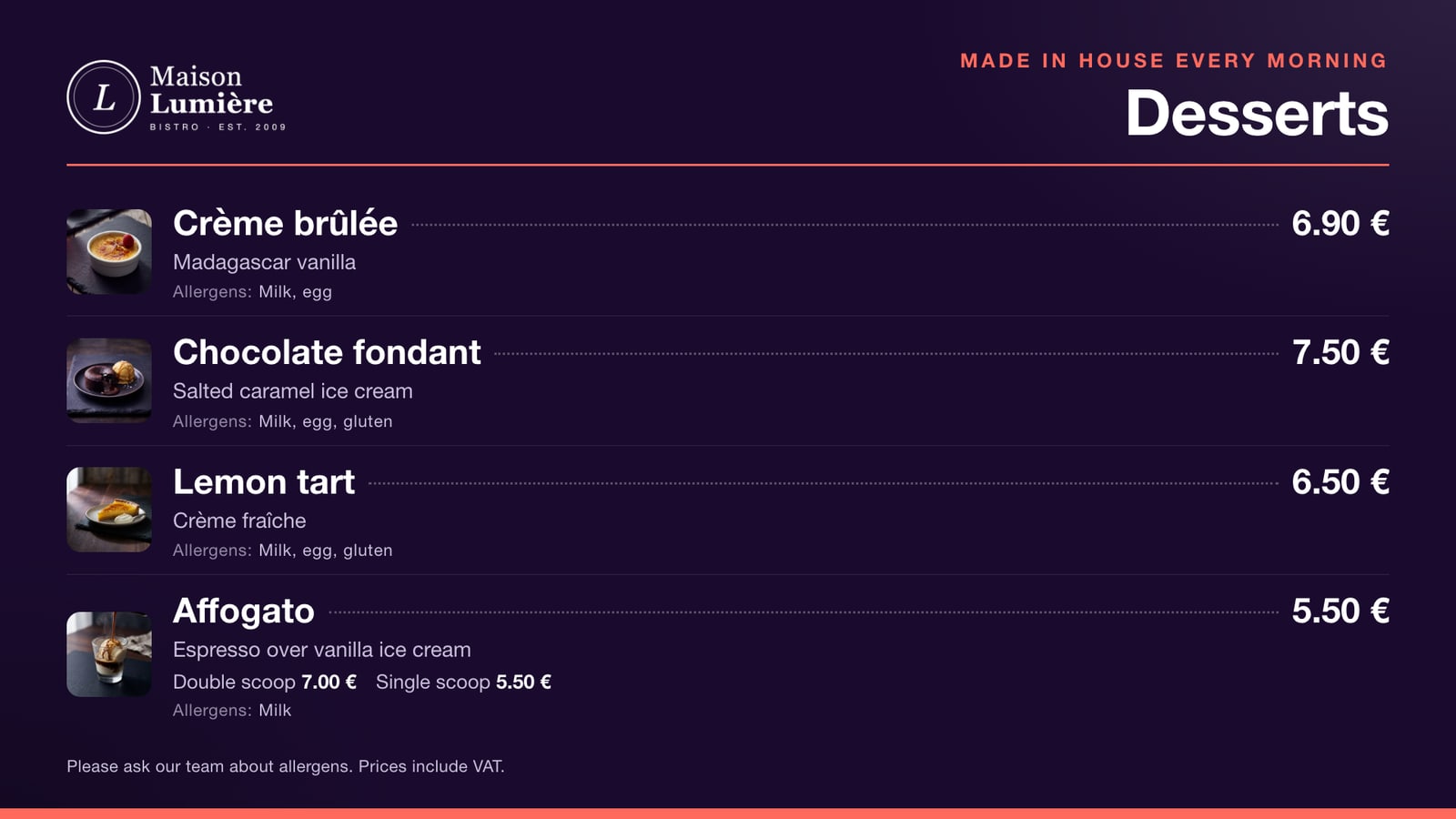 Product photos and allergy information switched on.
A long category is split into pages. Make the layout’s duration at least as long as all pages together (two pages at 12 seconds need 24).
Step 5: Publish and schedule
Open the three-line menu at the top right of the editor and choose Publish. Then schedule it, Always for a first test: see Putting your design on a screen. For breakfast and dinner menus, schedule one layout per service: see timezones and dayparting.
To change a price later, edit the product in Library > Menu Boards and Save, without republishing. For a portrait or custom board, use the Menu Board: Products and Menu Board: Category elements: see Creating layouts.
If something looks wrong
- “No data providers configured”: choose a Menu and Category on Configure.
- A dish is missing: check its Availability and its category, or tick Show Unavailable Products?.
- Wrong currency symbol or separator: change it on the Appearance tab, not in the menu.
- An old price on screen: the player has not checked in yet. See Player connected but not updating.
- No Menu Boards in your Library, or no template in the Toolbox: raise a support request and we will switch them on.
For reading distance, type size and how many dishes a screen can carry, see digital menu boards.
Related articles: Your First Design, Putting Your Design on a Screen, Dynamic Content with DataSets, Timezones and Dayparting