Windows Player Says “Client Found Response Content Type”
The Windows player reports "Client found response content type of 'text/plain', but expected 'text/xml'" when its version does not match your CMS. Install the Windows player built for your platform.
Opens the downloads page with the right version already selected on the Windows card.
After Connect in Player Options, the Status box says Client found response content type of ‘text/plain;charset=UTF-8’, but expected ‘text/xml’, then The request failed with the error message:. The player and your CMS are on different versions.
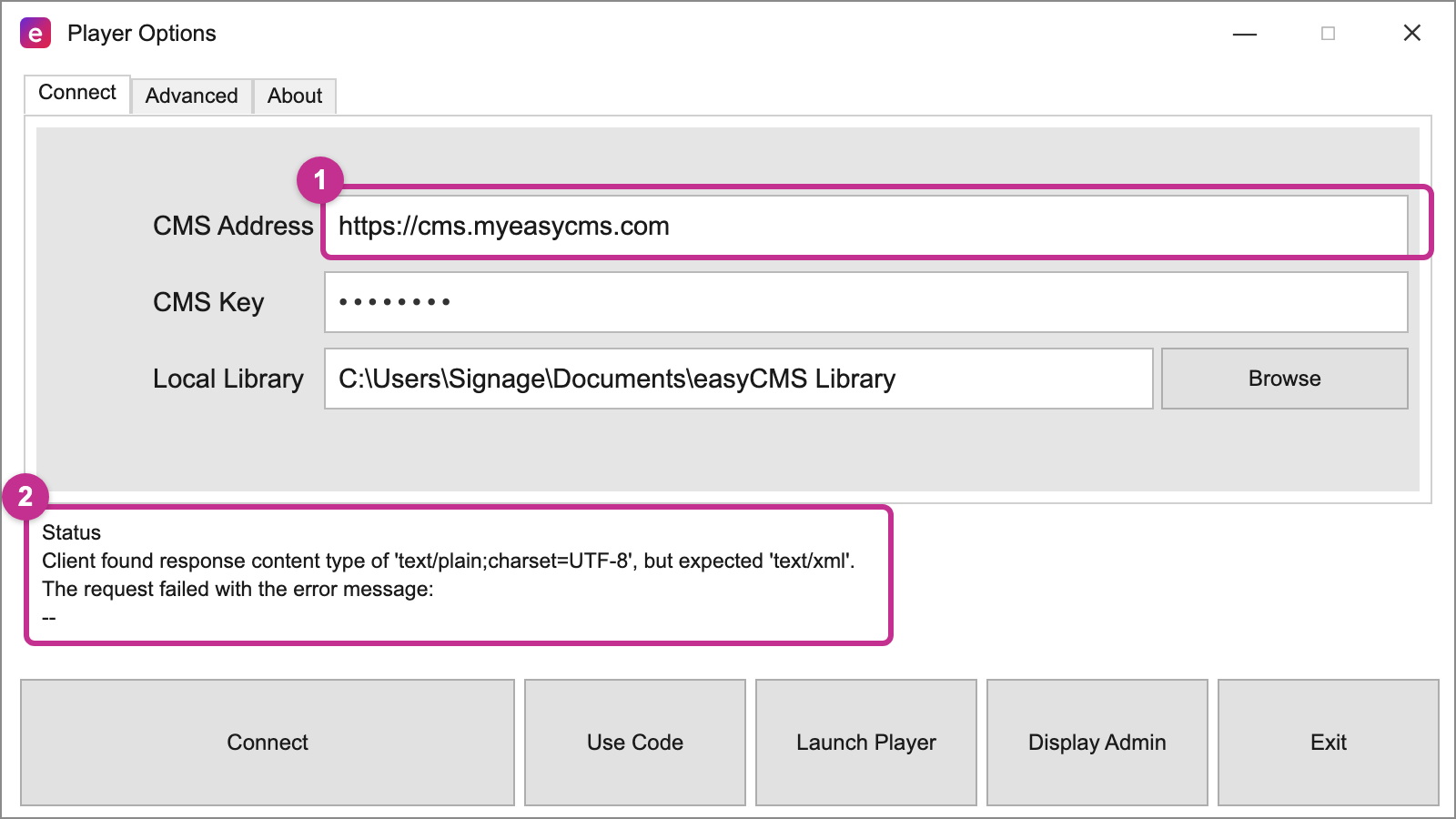 1: a CMS address on easyCMS V3. 2: the error the current Windows player shows there.
Check your CMS address
Customers who signed up before the move are on easyCMS V3, everyone since on V4. The Windows player at the top of the downloads page is built for V4, and V3 answers it in plain text. The CMS Address in Player Options, as in your welcome email, tells you which you have.
| CMS address | Your platform | Windows player you need |
|---|---|---|
https://cms.myeasycms.com |
easyCMS V3 | Version 3 |
https://app.myeasycms.com |
easyCMS V4 | Version 4, the latest |
Fixes
1. On V3: install the V3 Windows player
Keep the address and key; change the player.
- Close the player and uninstall it in Settings > Apps > Installed apps: Windows will not install an older version over a newer one.
- Open the downloads page with the V3 player selected. On the Windows card, the version beside Download should start with 3; if not, choose it from that menu.
- Install, open Player Options, enter the same CMS Address and CMS Key, and click Connect.
The Status box should now say the display is waiting to be authorised. Add a display works on V4 only, so send us the display name and we authorise it.
Good to know Version 3 of the player gets security fixes, not new features. To run the latest, ask us about moving your account to easyCMS V4.
2. Already on app.myeasycms.com: check the network
Then something else answers in place of easyCMS, most often a content filter or proxy. Load the CMS address in a browser on that PC: if you get anything but the easyCMS login page, hand Network Requirements and Firewall Rules to your IT team.
Still stuck? Send a support request
If the login page loads and the error stays, send a support request with a photo of Player Options.
Related articles: Windows Player Setup, Updating Players and Keeping Versions in Step, Network Requirements and Firewall Rules, Common easyCMS Errors and What They Mean