El reproductor de Windows muestra “Client Found Response Content Type”
El reproductor de Windows indica "Client found response content type of 'text/plain', but expected 'text/xml'" cuando su versión no coincide con su CMS. Instale el reproductor de Windows creado para su plataforma.
Abre la página de descargas con la versión correcta ya seleccionada en la tarjeta de Windows.
Tras Conectar en Opciones del reproductor, el cuadro Status dice Client found response content type of ‘text/plain;charset=UTF-8’, but expected ‘text/xml’ y luego The request failed with the error message:. El reproductor y su CMS están en versiones distintas.
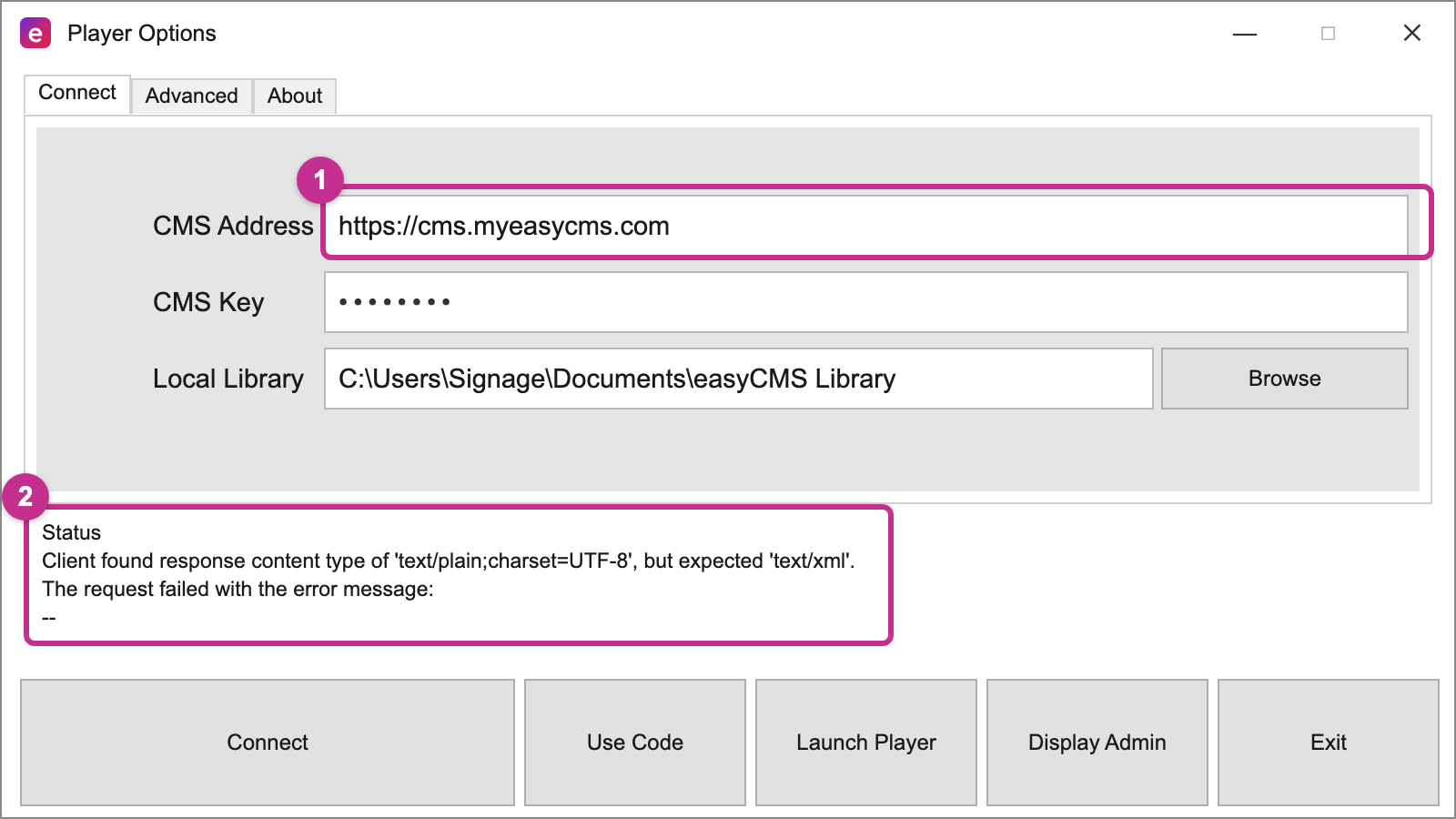 1: una dirección de CMS en easyCMS V3. 2: el error que muestra ahí el reproductor de Windows actual.
Compruebe la dirección de su CMS
Los clientes que se registraron antes del traslado están en easyCMS V3, y todos los posteriores en V4. El reproductor de Windows que aparece arriba en la página de descargas está hecho para V4, y V3 le responde en texto plano. La Dirección del CMS en Opciones del reproductor, igual que en su correo de bienvenida, le indica cuál tiene.
| Dirección del CMS | Su plataforma | Reproductor de Windows que necesita |
|---|---|---|
https://cms.myeasycms.com |
easyCMS V3 | Versión 3 |
https://app.myeasycms.com |
easyCMS V4 | Versión 4, la más reciente |
Soluciones
1. En V3: instale el reproductor de Windows V3
Mantenga la dirección y la clave; cambie el reproductor.
- Cierre el reproductor y desinstálelo en Configuración > Aplicaciones > Aplicaciones instaladas: Windows no instala una versión más antigua encima de una más reciente.
- Abra la página de descargas con el reproductor V3 seleccionado. En la tarjeta Windows, la versión junto a Descargar debe empezar por 3; si no, elíjala en ese menú.
- Instálelo, abra Opciones del reproductor, introduzca la misma Dirección del CMS y la misma Clave del CMS, y haga clic en Conectar.
El cuadro Status debería indicar ahora que la pantalla está esperando autorización. Añadir una pantalla solo funciona en V4, así que envíenos el nombre de la pantalla y la autorizamos.
Bueno saberlo La versión 3 del reproductor recibe correcciones de seguridad, no funciones nuevas. Para usar la última, pregúntenos por el traslado de su cuenta a easyCMS V4.
2. Ya en app.myeasycms.com: compruebe la red
Entonces algo distinto responde en lugar de easyCMS, casi siempre un filtro de contenido o un proxy. Cargue la dirección del CMS en un navegador de ese PC: si obtiene algo que no sea la página de inicio de sesión de easyCMS, pase Requisitos de red y reglas de firewall a su equipo de TI.
¿Sigue sin resolverse? Envíe una solicitud de soporte
Si la página de inicio de sesión carga y el error persiste, envíe una solicitud de soporte con una foto de Opciones del reproductor.
Artículos relacionados: Configuración del reproductor Windows, Actualizar los reproductores y mantener las versiones sincronizadas, Requisitos de red y reglas de firewall, Errores comunes de easyCMS y qué significan